Oct 20, 2026
Power BI for Project Management: 10 Best Dashboard Examples
Looking for a Power BI project management dashboard that goes beyond a status page? These 10 real reports cover portfolio health, budget and schedule performance, delivery risk, tasks, milestones, and resources. Every example is available in the ZoomCharts Template Gallery, where you can preview the report and review the PBIX template.
Looking for a Power BI project management dashboard that goes beyond a status page? These 10 real reports cover portfolio health, budget and schedule performance, delivery risk, tasks, milestones, and resources. Every example is available in the ZoomCharts Template Gallery, where you can preview the report and review the PBIX template.
1. Power BI Project Management Dashboard for Portfolio Performance
Best for: PMO and executive reviews of portfolio health, value, cost, progress, and risk
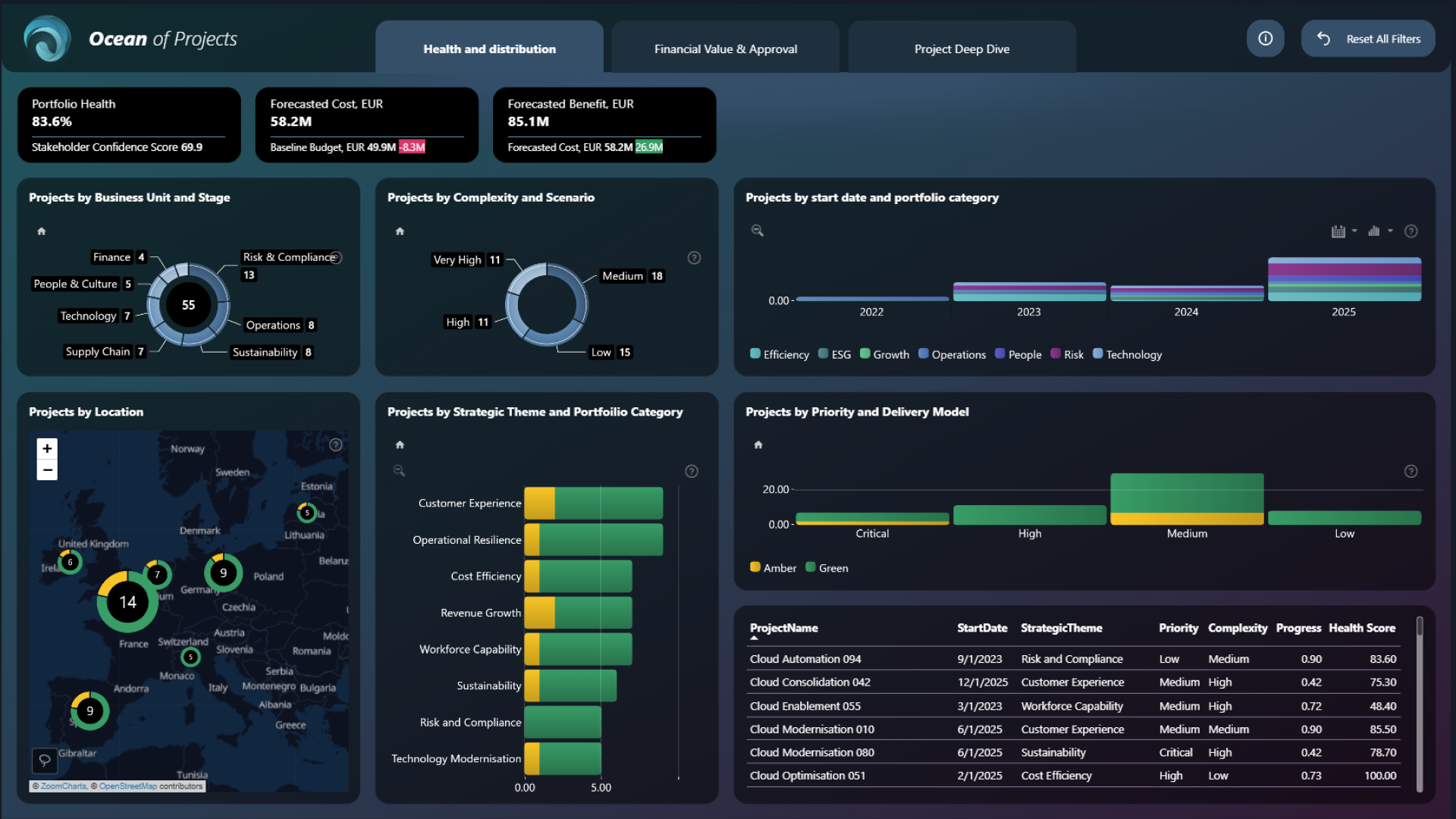
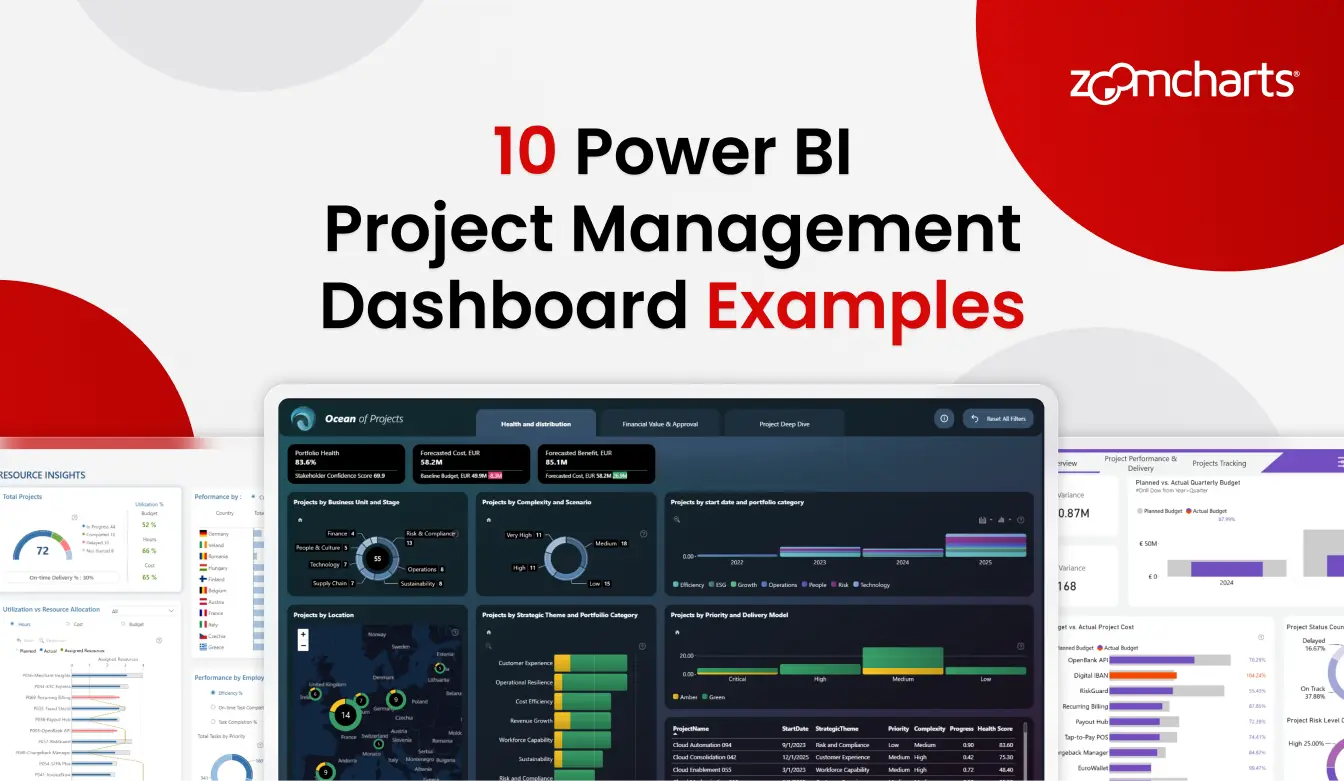
This ZoomCharts report starts with portfolio health and distribution, then moves into financial value and approval before opening a detailed view of one project. The overview covers stakeholder confidence, forecast cost, expected benefit, lifecycle stage, complexity, priority, delivery model, and location.
The project view is where the design earns its space. Select a project to check cost variance, forecast benefit, critical risks, overdue milestones, schedule, resources, and current status. It suits a PMO that needs an executive summary without losing the route to project-level detail.
Explore this dashboard template
ZoomCharts visuals used:
Drill Down Bubble PRO, Drill Down Scatter PRO, Drill Down Combo PRO, Drill Down Combo Bar PRO, Drill Down Map PRO, Drill Down Timeline PRO, and Drill Down Donut PRO.
2. Power BI Project Management Dashboard for Portfolio Health
Best for: Checking portfolio risk, budget performance, schedule performance, and delivery efficiency
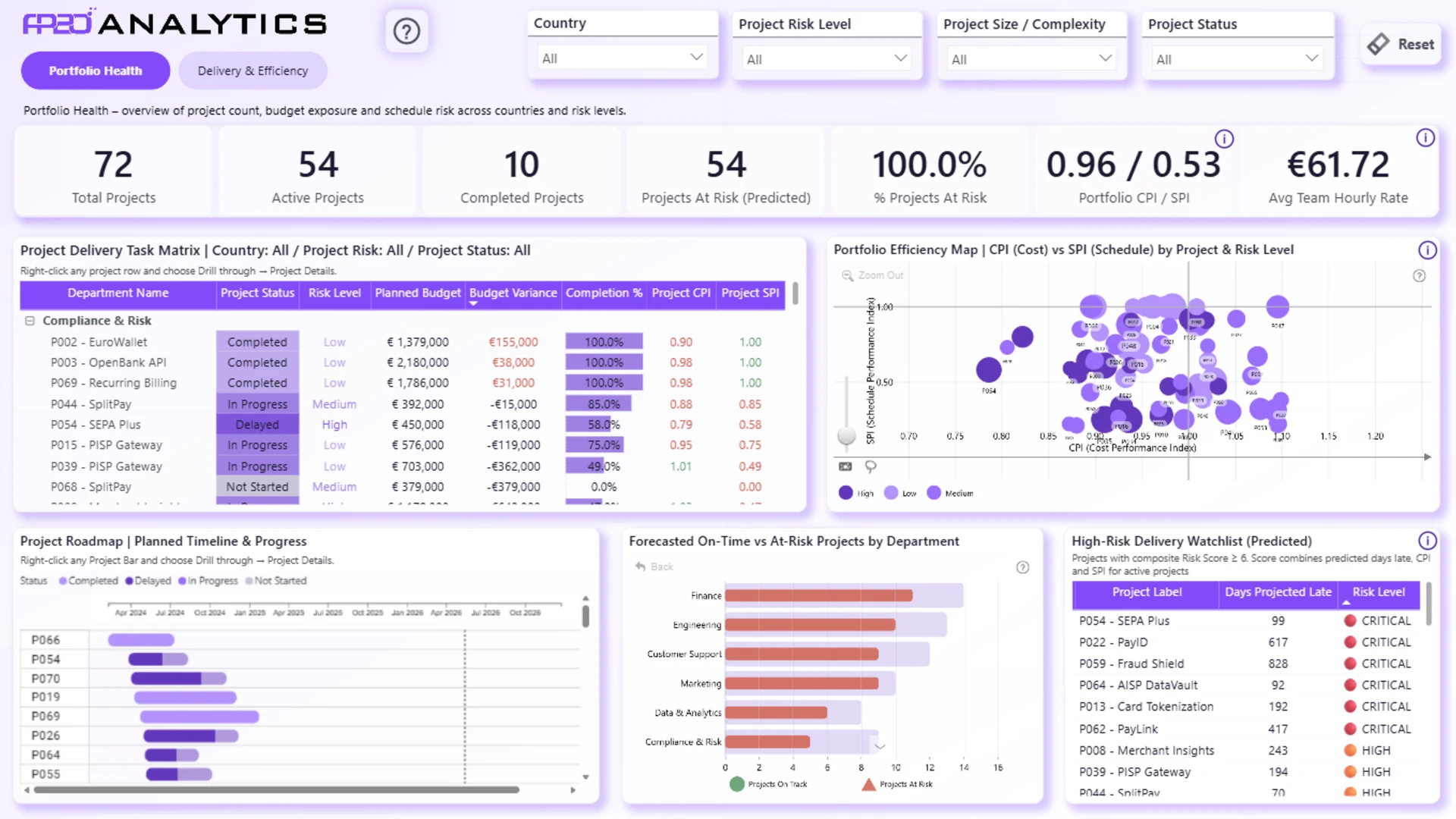
Abdelrahman Mohammed built this two-page report around the questions raised in a portfolio review. It tracks active and completed projects, predicted at-risk projects, Cost Performance Index, Schedule Performance Index, milestone completion, late milestones, and over-budget projects.
Filters for country, risk, project size or complexity, and status let users narrow the portfolio quickly. A roadmap, scatter view, budget trend, and risk watchlist give the report enough detail for follow-up without turning the opening page into a project register.
Explore this dashboard template
ZoomCharts visuals used:
Drill Down Bubble PRO, Drill Down Combo Bar PRO, and Drill Down Timeline PRO.
3. Project Management Dashboard in Power BI for fintech projects
Best for: Connecting delivery, budgets, hours, employee performance, tasks, risks, and milestones

Akindele Omolayo created this three-page report for the FP20 Analytics ZoomCharts Data Challenge 32. The first page covers project status, budget usage, risk level, and budget trends. The other pages connect employee and task performance with cost efficiency, resource use, and milestone delays.
Users can drill into departments, products, project IDs, and milestones. A metric switch moves between budget and hours, which is handy when a delivery problem needs to be checked from both the cost and workload side.
Explore this dashboard template
ZoomCharts visuals used:
Drill Down Combo PRO, Drill Down Combo Bar PRO, Drill Down Timeline PRO, and Drill Down Donut PRO.
4. Power BI Project Management Dashboard and PMO Template
Best for: A structured PMO report with project overview, delivery performance, task tracking, and resource filters

This four-page template by Agbata Dickson Ukolojo compares planned and actual budget, cost variance, planned and actual hours, and time variance. It also tracks on-time delivery, project manager efficiency, task efficiency, task status, and priority.
Its drill paths are carefully chosen: risk level to priority, year to quarter, and project name to task name. Filters for country, completion year, and employee experience add context for teams that manage work across locations or mixed-seniority teams.
Explore this dashboard template
ZoomCharts visuals used:
Drill Down Combo Bar PRO, Drill Down Timeline PRO, and Drill Down Donut PRO.
5. Power BI Fintech Project Management Dashboard
Best for: A concise view of projects, budgets, tasks, milestones, and workforce performance
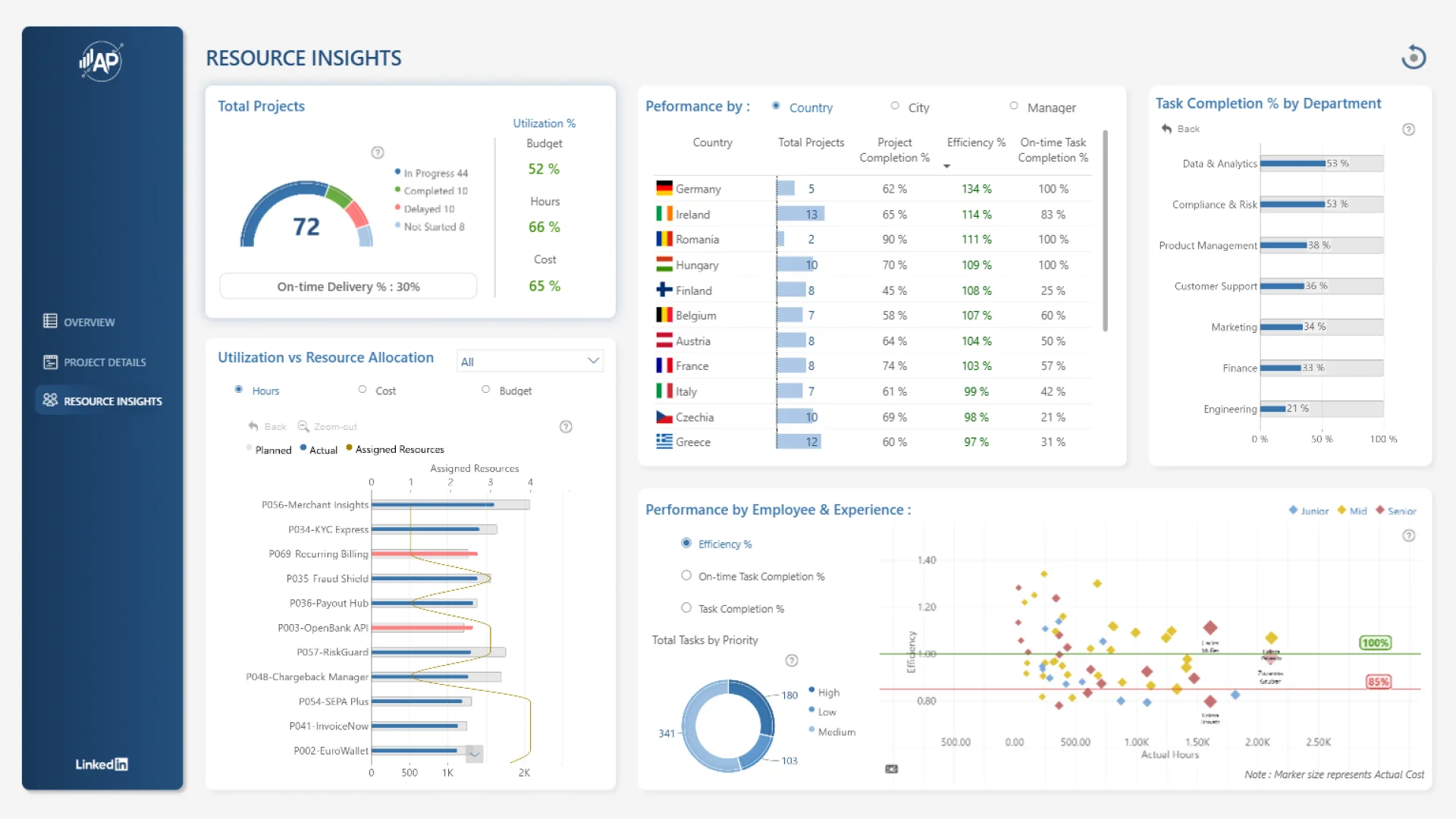
Akshay Patil created this three-page report, the winning entry in the FP20 Analytics ZoomCharts Data Challenge 32. It covers project progress, task and milestone completion, budget utilization, resource efficiency, and employee performance across teams and roles.
The report uses a small set of visual types across its pages. Bubble charts compare related measures, horizontal bars rank results, and donut charts break down categories. It is a strong reference when you want interactive analysis without filling the canvas with many different chart styles.
Explore this dashboard template
ZoomCharts visuals used:
Drill Down Bubble PRO, Drill Down Combo Bar PRO, and Drill Down Donut PRO.
6. Fintech Project Management Dashboard in Power BI
Best for: Comparing budget, hours, project work, milestones, labor cost, and employee experience

Nina Ikpe splits this three-page dashboard into a portfolio overview, project and task performance, and resource and experience analysis. The report pairs budget utilization and variance with planned and actual hours, task completion, milestone delays, labor cost, and hourly rate.
You can drill by country, city, project, department, and task, then switch between financial and hours-based measures. That is useful when an overspend needs a closer look: the source may be extra hours, a higher rate, or the work attached to a particular project or team.
Explore this dashboard template
ZoomCharts visuals used:
Drill Down Scatter PRO, Drill Down Combo Bar PRO, Drill Down Timeline PRO, and Drill Down Donut PRO.
7. Power BI Project Tracking and Team Performance Dashboard
Best for: Reviewing project health, resource contribution, timelines, team activity, and risk

Sushree Jena uses four pages to separate project performance, resources, timelines, team activity, and risk. The division is practical. A reader can start with overall health, move into time or resources, and compare teams without asking one page to carry the entire report.
Scatter, combo, horizontal bar, timeline, and donut visuals support different questions while keeping the interaction consistent. Select an active chart element and the related visuals update, so the route from the portfolio view to a smaller group stays clear.
Explore this dashboard template
ZoomCharts visuals used:
Drill Down Scatter PRO, Drill Down Combo PRO, Drill Down Combo Bar PRO, Drill Down Timeline PRO, and Drill Down Donut PRO.
8. Power BI Employee Performance and Project Planning Dashboard
Best for: Seeing how employee workload, labor cost, and performance connect with projects and tasks

Crystal Andrea Dsouza brings employee and project data together in three pages. Measures include planned and actual hours, employee efficiency, hourly rate, labor cost, project and task status, risk level, completion percentage, planned dates, and task duration.
The employee view compares departments and people by experience, hours, efficiency, and cost. Project planning adds status, priority, dates, duration, and risk. It fits organizations where capacity planning is part of the project conversation, rather than a separate workforce report.
Explore this dashboard template
ZoomCharts visuals used:
Drill Down Combo Bar PRO, Drill Down Timeline PRO, and Drill Down Donut PRO.
9. Fintech Project Delivery Analysis
Best for: Analyzing delivery efficiency, resource allocation, and payment solution development

Nnamdi Nwankwo designed this three-page Power BI report to examine project delivery in payment solution development. Its stated focus is delivery efficiency, resource allocation, and overall project performance.
The report combines scatter, combo, horizontal bar, timeline, and donut visuals. That gives developers a useful reference for matching a chart to the question: relationships between measures, ranked comparisons, change over time, and category breakdowns all have a distinct place.
Explore this dashboard template
ZoomCharts visuals used:
Drill Down Scatter PRO, Drill Down Combo PRO, Drill Down Combo Bar PRO, Drill Down Timeline PRO, and Drill Down Donut PRO.
10. Power BI Fintech Project Financial Performance Tracking
Best for: Combining project finance, delivery timelines, location, and portfolio comparisons

This three-page report by Anuoluwapo Odunayo Aliu combines project portfolio analysis with financial performance and delivery timelines. Users can compare projects across categories and statuses, review differences in financial measures, and use scatter analysis to check relationships between project measures.
A geographic view adds location to the analysis, while timeline and category charts keep the delivery story visible. Choose this layout when place matters to the portfolio, or when finance and schedule need to be reviewed together instead of in separate reports.
Explore this dashboard template
ZoomCharts visuals used:
Drill Down Map PRO, Drill Down Scatter PRO, Drill Down Combo PRO, Drill Down Timeline PRO, and Drill Down Donut PRO.
Ideas for Your Next Project Management Dashboard
- Build the first page for one meeting. A portfolio review needs health, cost, value, risk, and trend. A delivery review needs tasks, milestones, hours, and accountable teams.
- Keep plan and actual together. Put planned and actual budget, hours, progress, or benefit in the same visual context so the variance is easy to read.
- Let users open the risk. A risk count is a starting point. Add a useful drill path to priority, project, milestone, owner, or another level supported by the model.
- Separate portfolio and project detail. Use the portfolio page to find the exception. Use a project page to explain it.
- Test interactions against real questions. Cross-filtering and drill-down should shorten the route from a KPI to its cause. Remove interactions that do not help that investigation.
Before adapting a template, check the model, measures, field requirements, drill paths, and filter behavior in Power BI Desktop. Replace the sample source, validate each measure against a trusted total, and test the report with the people who will use it.
Explore More Power BI Dashboard Templates
The right starting point depends on the way your team reviews projects. Open the examples that match your reporting questions, inspect the live interactions, and compare the PBIX structure before choosing a design.
Browse Power BI project management dashboard examples and templates, or explore the full ZoomCharts Power BI Template Gallery.
Try ZoomCharts Drill Down Visuals Free for 30 Days
Try the ZoomCharts visuals in your own Power BI reports with a 30-day trial. The trial supports published and shared reports while it is active.

Want more info like this?
Subscribe to our newsletter and be the first to read our latest articles and expert data visualization tips!