Oct 26, 2026
12 Best Power BI Marketing Dashboard Examples for 2027
The 12 marketing dashboard examples in this article show practical ways to organize campaign, email, acquisition, social media, content, retail, geographic, and engagement analysis in Power BI.
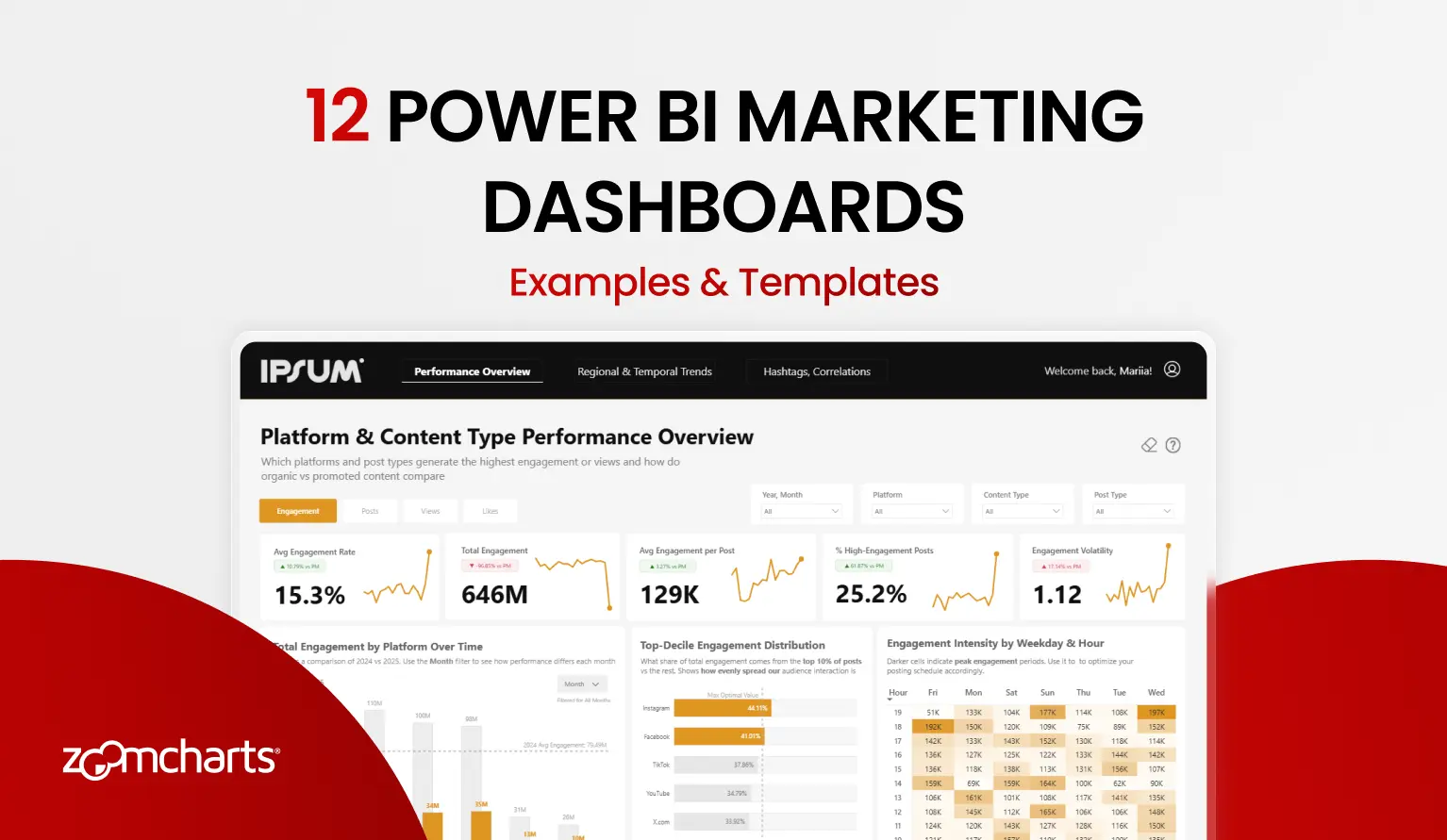
The 12 marketing dashboard examples in this article show practical ways to organize campaign, email, acquisition, social media, content, retail, geographic, and engagement analysis in Power BI.
What a Good Power BI Marketing Dashboard Should Show
A useful Power BI marketing dashboard should connect activity to business results. It should show what happened across campaigns and channels, where leads came from, how efficiently budget was used, and which audiences or content contributed to conversions.
The strongest reports also connect marketing, SEO, and CRM data. That gives teams a clearer path from search visibility and website visits to leads, opportunities, revenue, and return on investment. The 12 examples below show practical ways to organize campaign, email, acquisition, social media, content, retail, geographic, and engagement analysis in Power BI.
1. Power BI Marketing Email Campaign Dashboard
Best for: Comparing email engagement, conversions, audience segments, devices, and locations
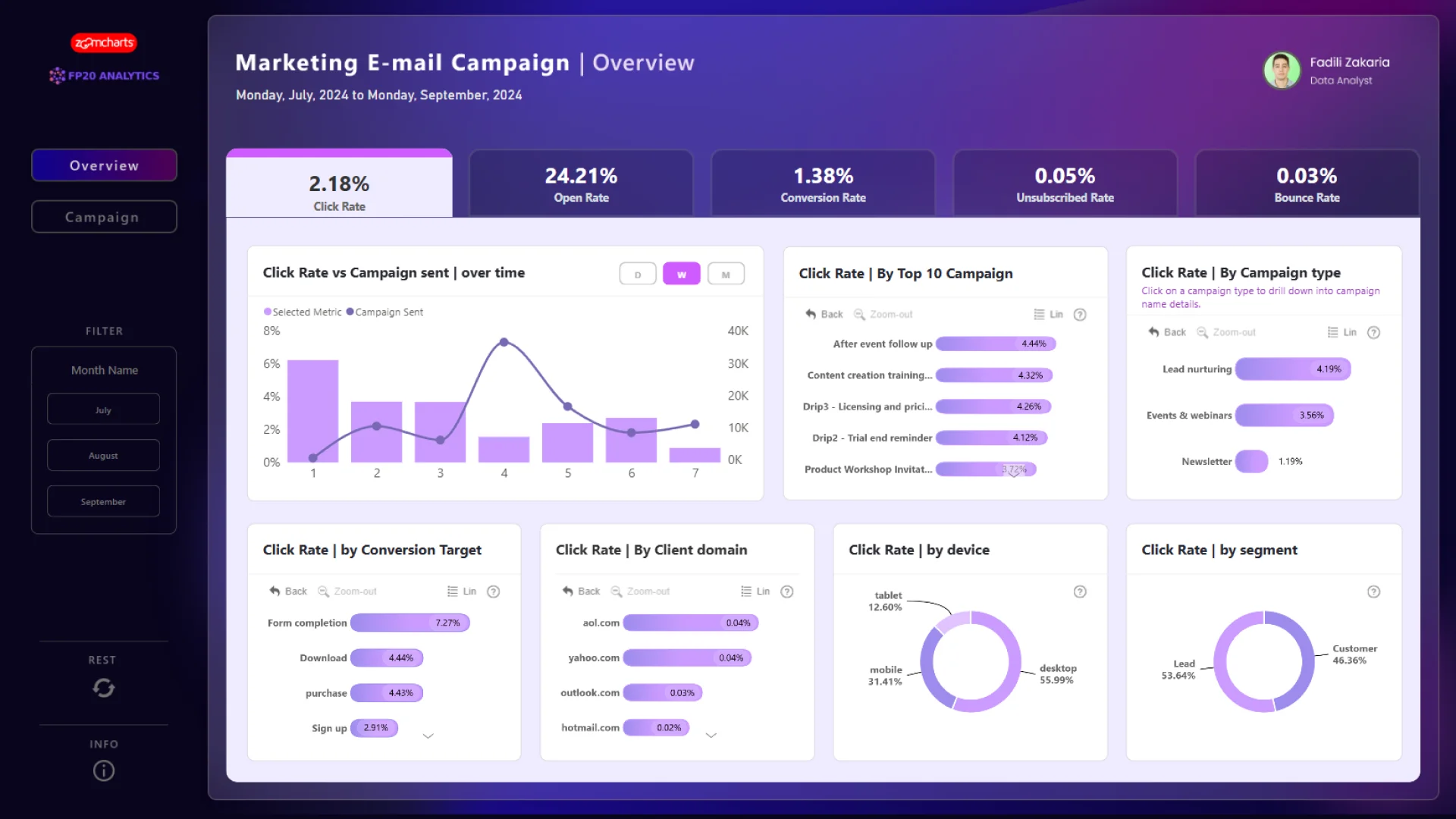
This two-page report brings email performance into one decision flow. The overview tracks open rate, click rate, conversion rate, unsubscribe rate, and bounce rate. Users can compare campaign types, conversion targets, client domains, devices, and audience segments without leaving the page.
A detailed campaign view adds message-level KPIs and geographic analysis by continent and country. This structure is useful for email teams that need a fast portfolio overview, followed by enough detail to investigate delivery, engagement, and conversion differences.
Explore this dashboard template
ZoomCharts visuals used:
Drill Down Combo Bar PRO, Drill Down Pie PRO, and Drill Down Map PRO.
2. Power BI Marketing Campaign Analysis Dashboard
Best for: Analyzing paid campaign performance by channel, device, city, and time
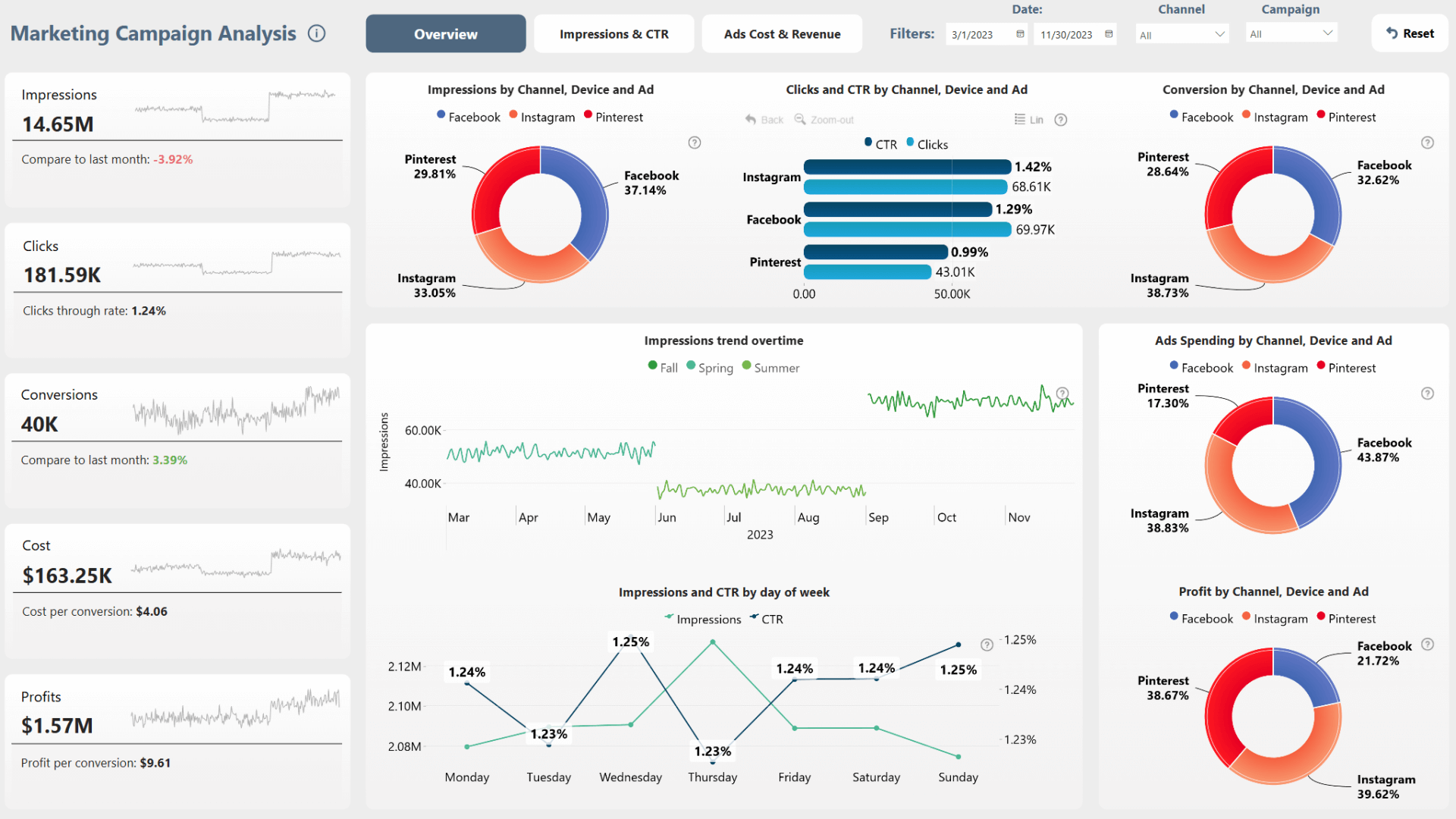
This report compares advertising campaigns across Facebook, Pinterest, and Instagram. It tracks impressions, clicks, click-through rate, conversions, cost, cost per conversion, profit, and profit per conversion, giving both marketing and finance stakeholders a shared view of performance.
Filters for campaign, period, channel, device, and city help users test what caused a result. Interactive selections cross-filter the page, making it easier to move from a high-level conversion or profit figure to the segment, location, device, or time period behind it.
Explore this dashboard template
ZoomCharts visuals used:
Drill Down Scatter PRO, Drill Down Combo PRO, Drill Down Combo Bar PRO, Drill Down Timeline PRO, and Drill Down Donut PRO.
3. Power BI Marketing Content Analysis Dashboard
Best for: Comparing social platforms, content formats, publishing times, hashtags, and regions
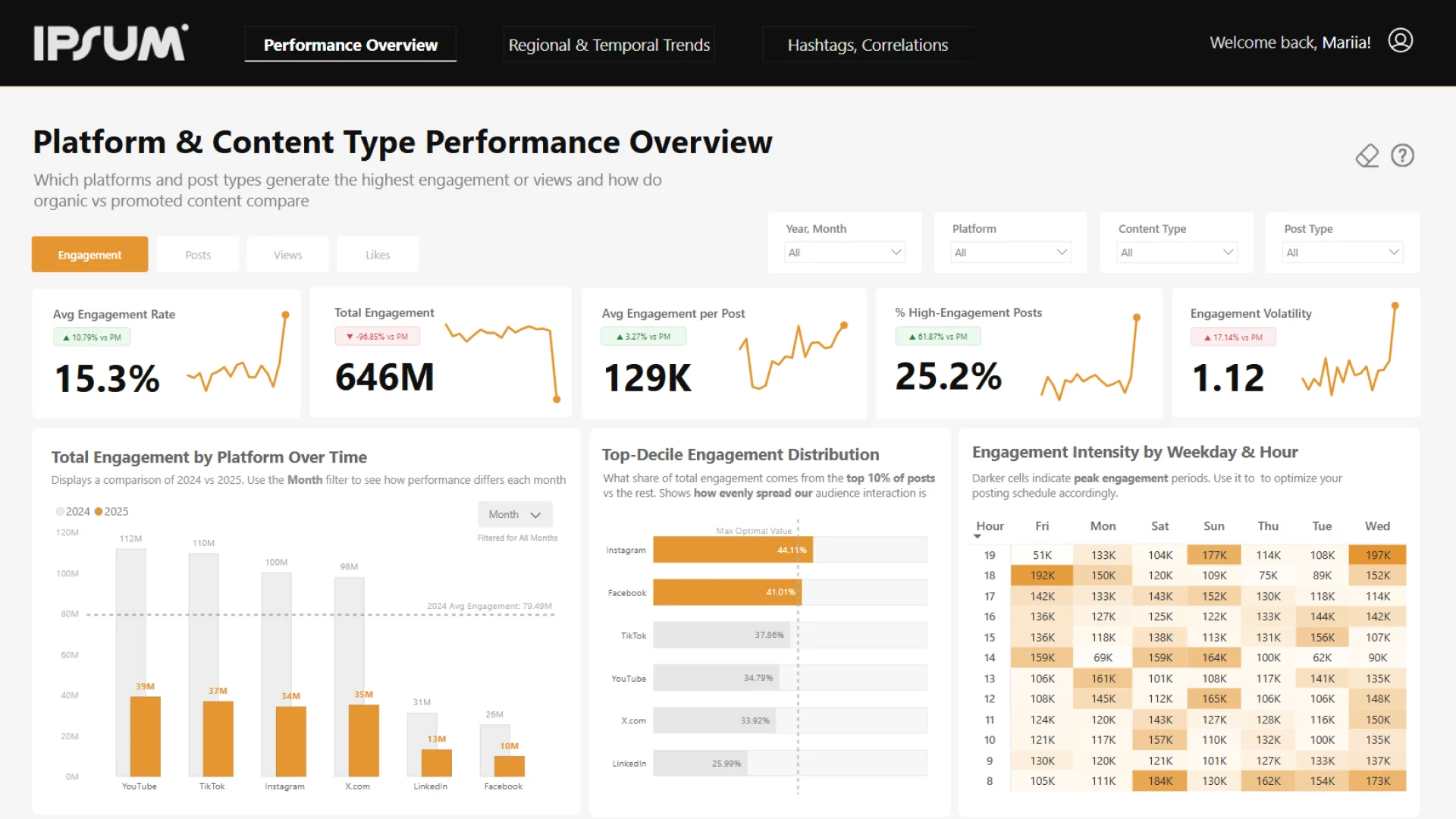
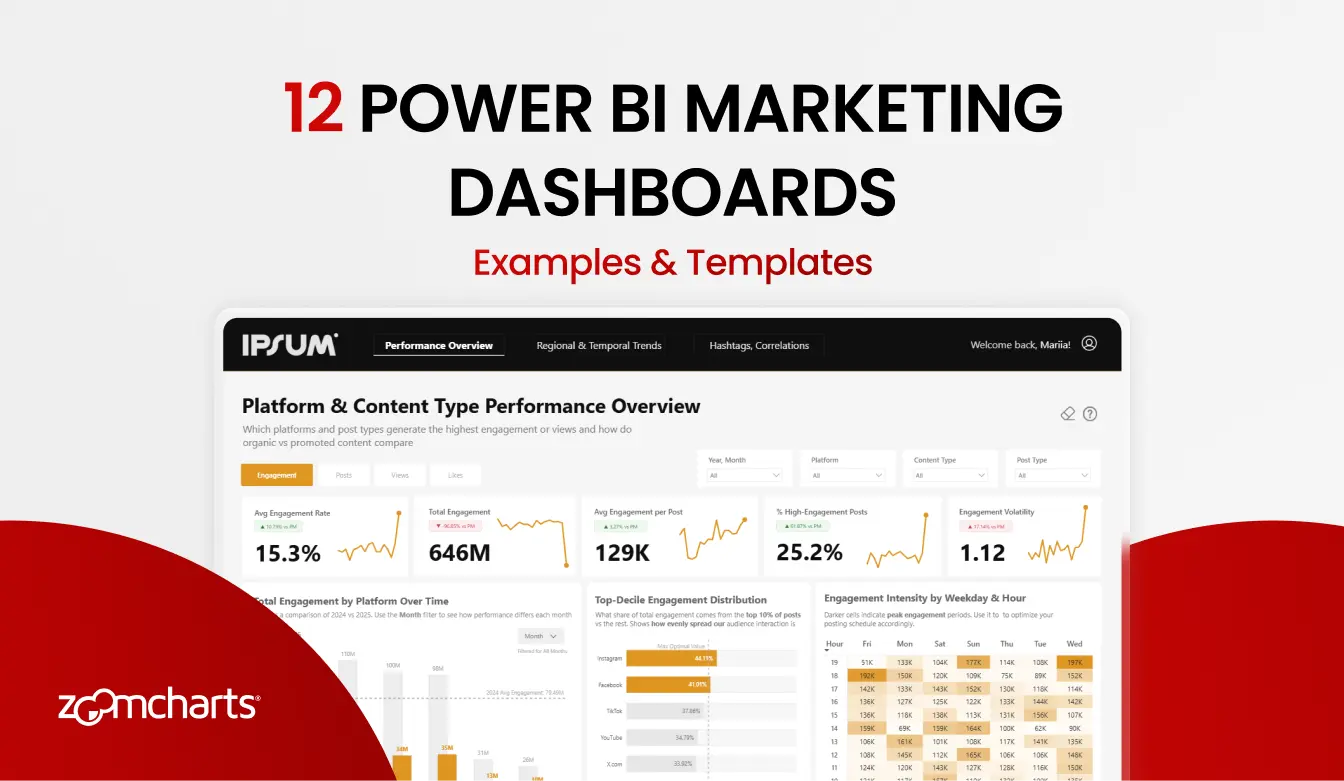
This six-page content analytics report compares YouTube, TikTok, X, Instagram, LinkedIn, and Facebook. It covers engagement, views, likes, posting activity, content categories, post formats, publishing time, geography, hashtags, and relationships between key metrics.
The report separates executive performance, regional and time-based trends, and hashtag or correlation analysis into focused sections. That makes it a useful model for content teams that want broad platform reporting without forcing every question onto one crowded overview page.
Explore this dashboard template
ZoomCharts visuals used:
Drill Down Map PRO and Drill Down Donut PRO.
4. Power BI Social Media Performance Dashboard
Best for: A compact view of social media composition and geographic performance
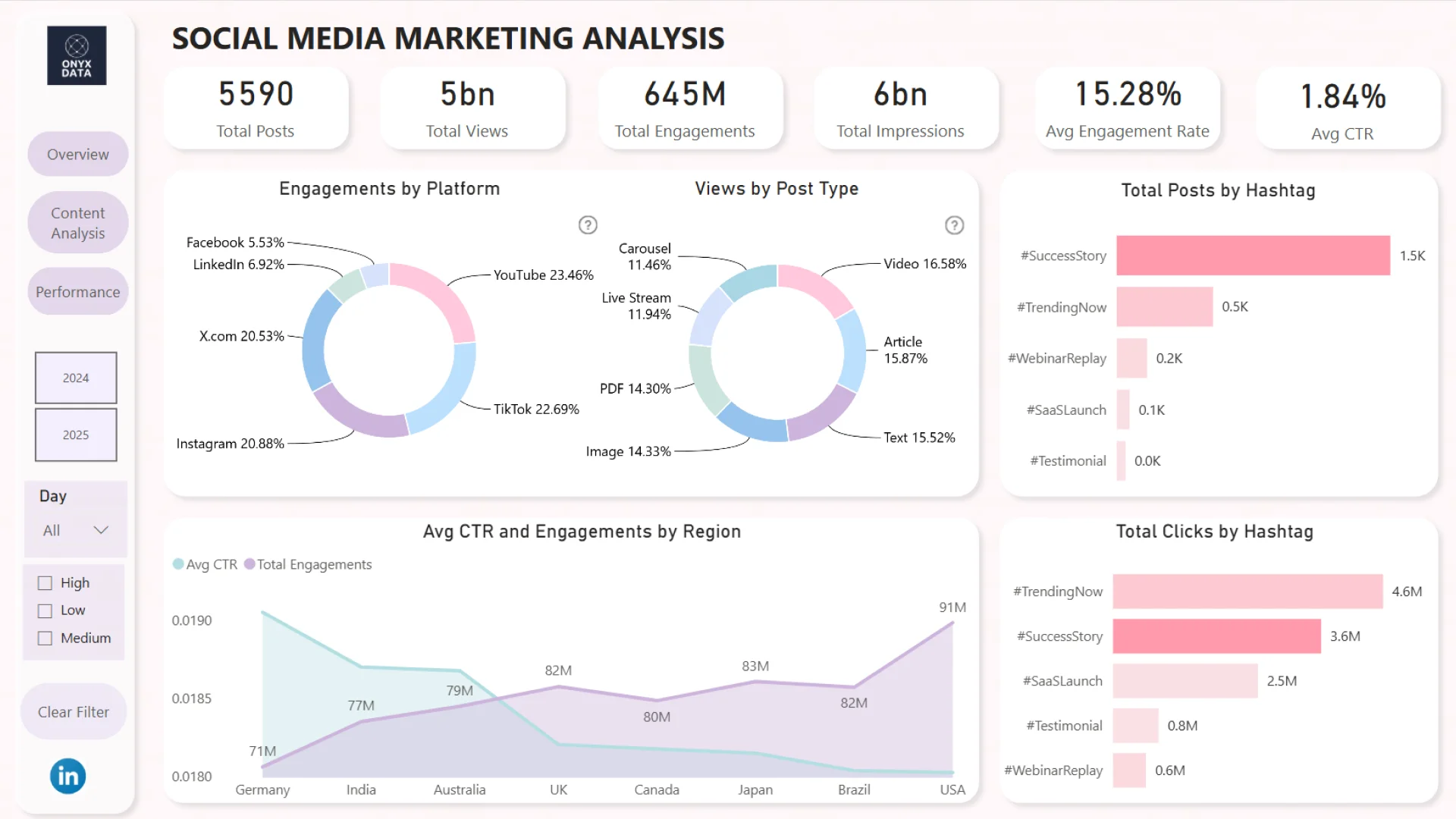
This dashboard uses a focused group of interactive visuals to compare social media results. Pie and donut charts support proportional analysis, while the map adds a geographic layer for exploring where content activity or engagement is concentrated.
Its restrained visual language is the main design lesson. Reusing a small set of chart types can make interaction more predictable and help stakeholders compare platforms, categories, and regions without learning a different visual pattern for every KPI.
Explore this dashboard template
ZoomCharts visuals used:
Drill Down Pie PRO, Drill Down Map PRO, and Drill Down Donut PRO.
5. Power BI Social Media Performance Report
Best for: Tracking social media trends, ranked categories, and proportional performance
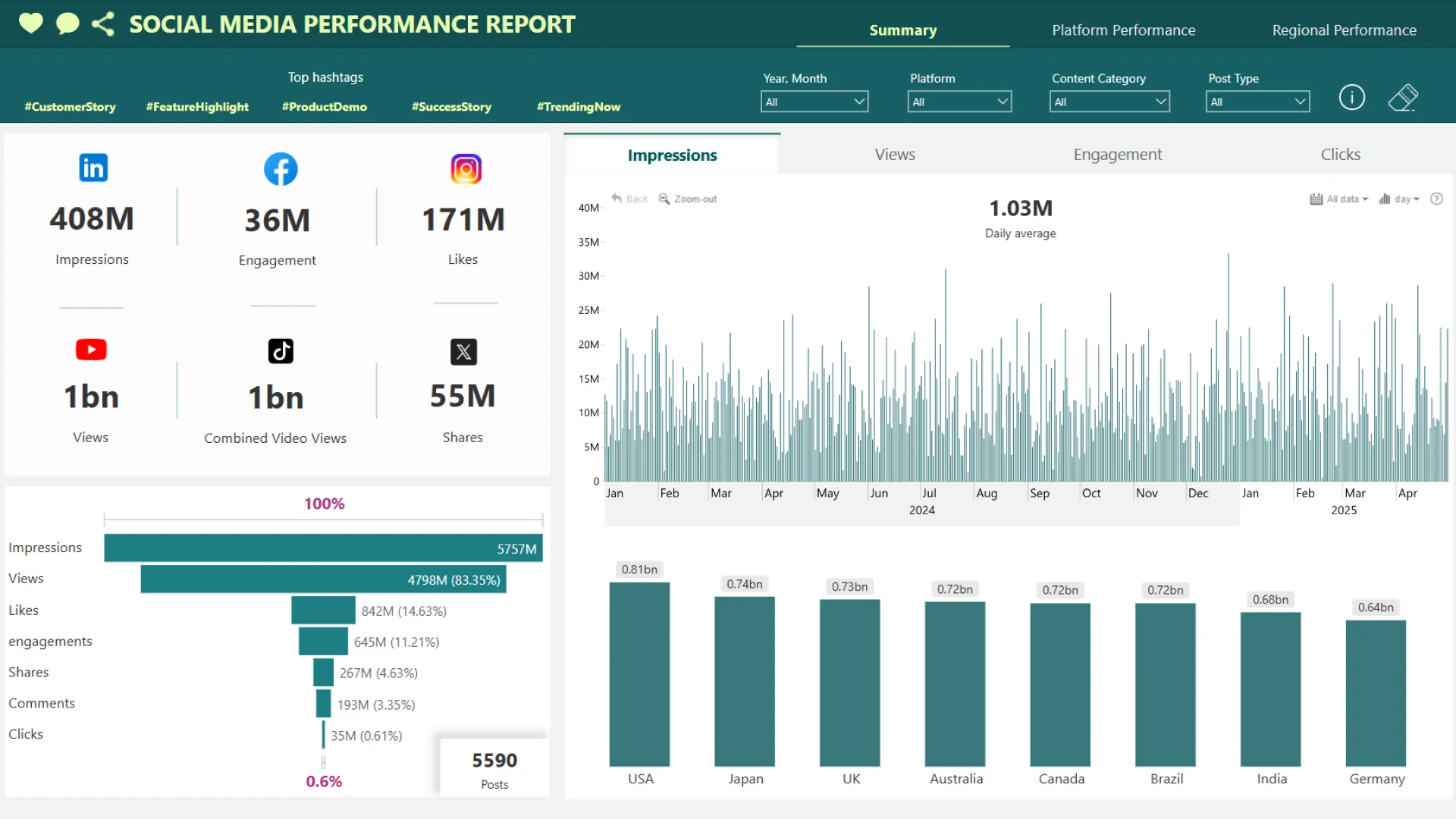
This example combines time-based trends, multi-metric comparisons, category rankings, and proportional breakdowns. It can help a social media team monitor performance over time while also comparing platforms, content groups, and the mix behind total engagement.
The report demonstrates a practical rule for dashboard design: choose each visual for a distinct analytical task. Trends, rankings, and composition need different treatments, but consistent formatting and interaction keep them connected as one reporting experience.
Explore this dashboard template
ZoomCharts visuals used:
Drill Down Combo PRO, Drill Down TimeSeries PRO, Drill Down Combo Bar PRO, and Drill Down Donut PRO.
6. Power BI Social Media Strategy Dashboard
Best for: Connecting social media trends, content rankings, and metric relationships
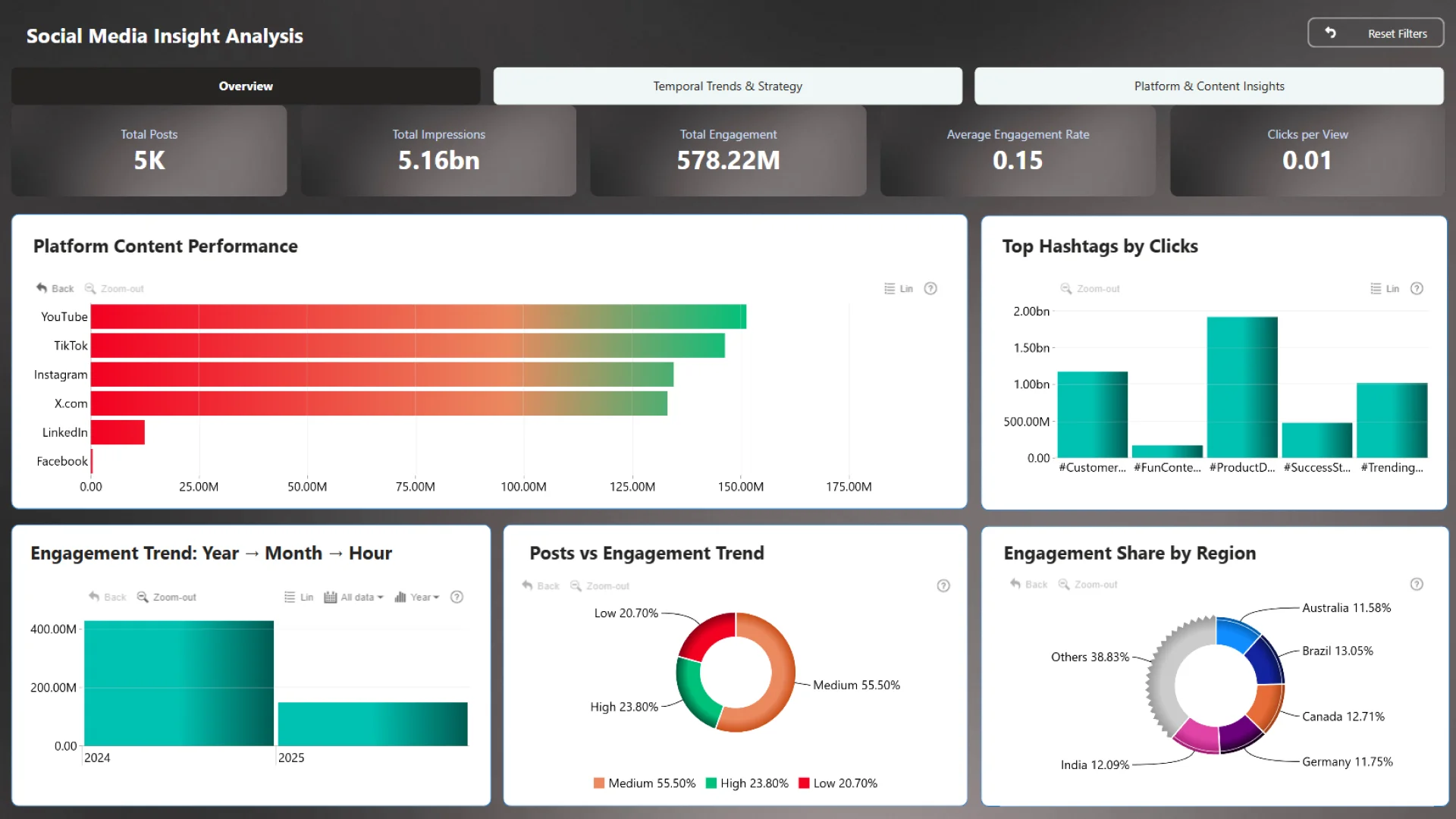
This strategy-focused dashboard supports several types of analysis in one page. Trend and timeline views show when performance changed, category comparisons identify strong or weak content groups, and scatter analysis helps users examine relationships between marketing measures.
That balance is valuable for strategy reviews. Directional KPIs show whether performance is improving, while diagnostic views help the team investigate which platforms, content types, periods, or related metrics may explain the movement.
Explore this dashboard template
ZoomCharts visuals used:
Drill Down Scatter PRO, Drill Down Combo PRO, Drill Down Combo Bar PRO, Drill Down Timeline PRO, and Drill Down Donut PRO.
7. Power BI Marketing Engagement Tracker Dashboard
Best for: A focused view of engagement composition without unnecessary visual complexity
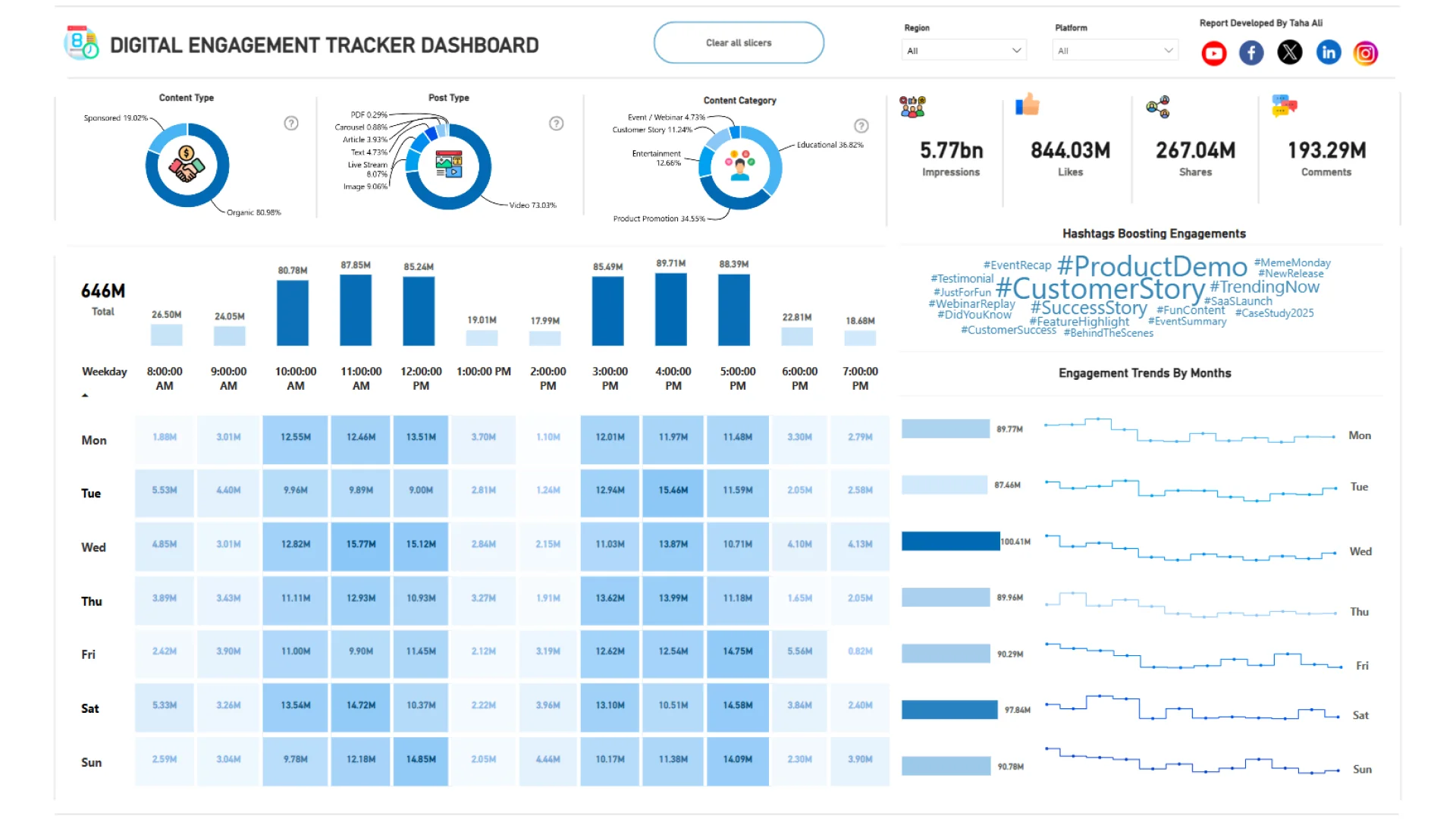
This engagement tracker is a useful counterpoint to the larger multi-page reports. It focuses on a narrower question and uses one ZoomCharts visual family to organize category composition and interactive filtering.
A focused report can be the right choice for campaign reviews, embedded analytics, or mobile layouts. When the audience needs one clear answer, a compact page with consistent interactions may be more useful than a broad dashboard with many competing metrics.
Explore this dashboard template
ZoomCharts visual used:
Drill Down Donut PRO.
8. Power BI Marketing Acquisition and ROAS Dashboard
Best for: Connecting campaign spend, acquisition activity, conversions, profit, ROI, and ROAS
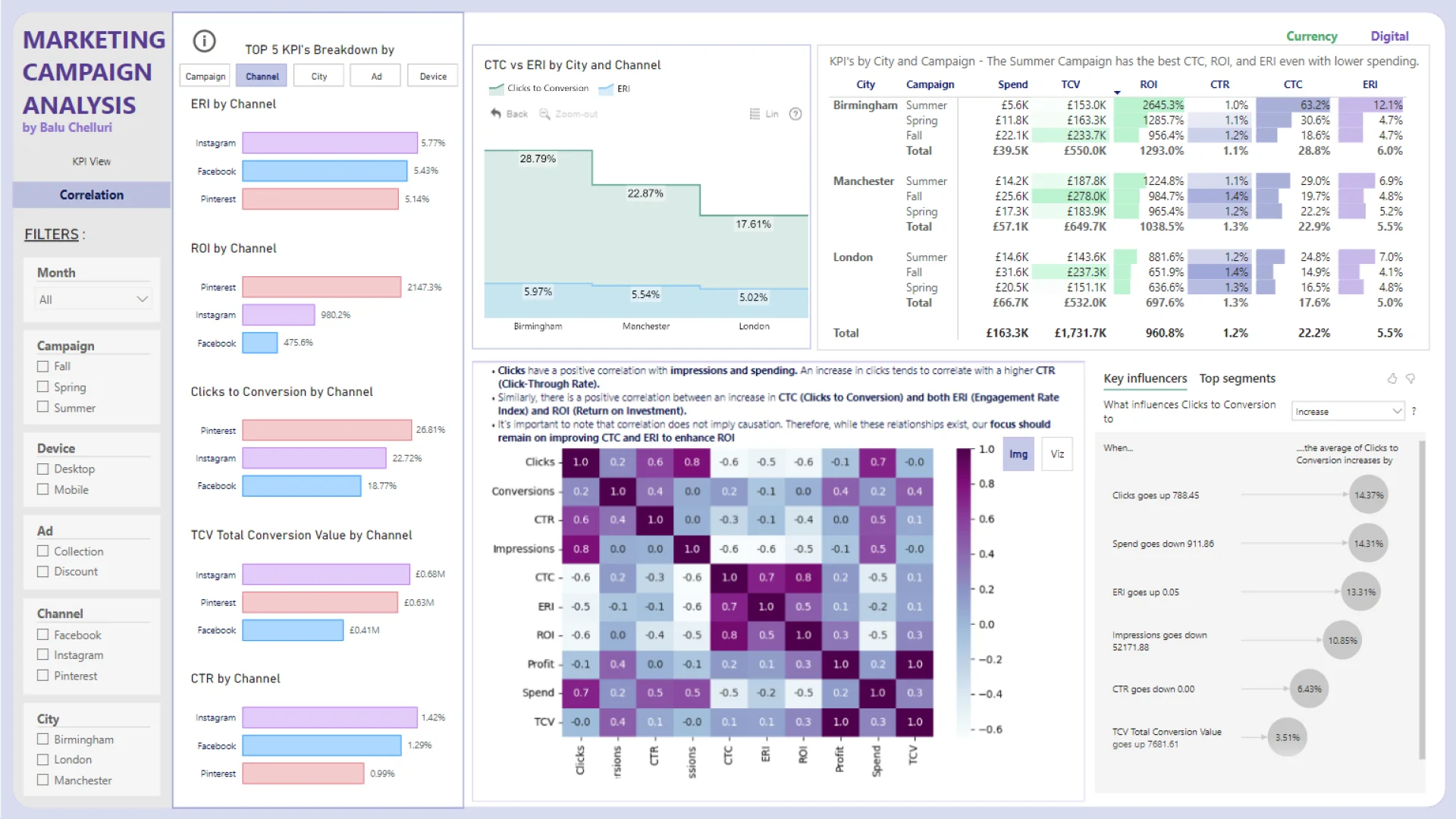
This two-page dashboard connects digital activity with financial performance. It tracks spend, conversion value, profit, ROI, impressions, clicks, click-through rate, cost per click, engagement, clicks to conversion, and total conversions across paid search, social media, email, and organic channels.
The KPI page compares the latest month with the previous period and breaks results down by channel and location. A correlation page adds KPI comparisons and city-level analysis. This is the strongest example in the collection for leaders who need to connect marketing efficiency to commercial value.
Explore this dashboard template
ZoomCharts visuals used:
Drill Down Donut PRO and Drill Down Combo PRO.
9. Power BI Email Campaign Insights Dashboard
Best for: Reviewing email engagement, campaign trends, audience groups, and geographic performance
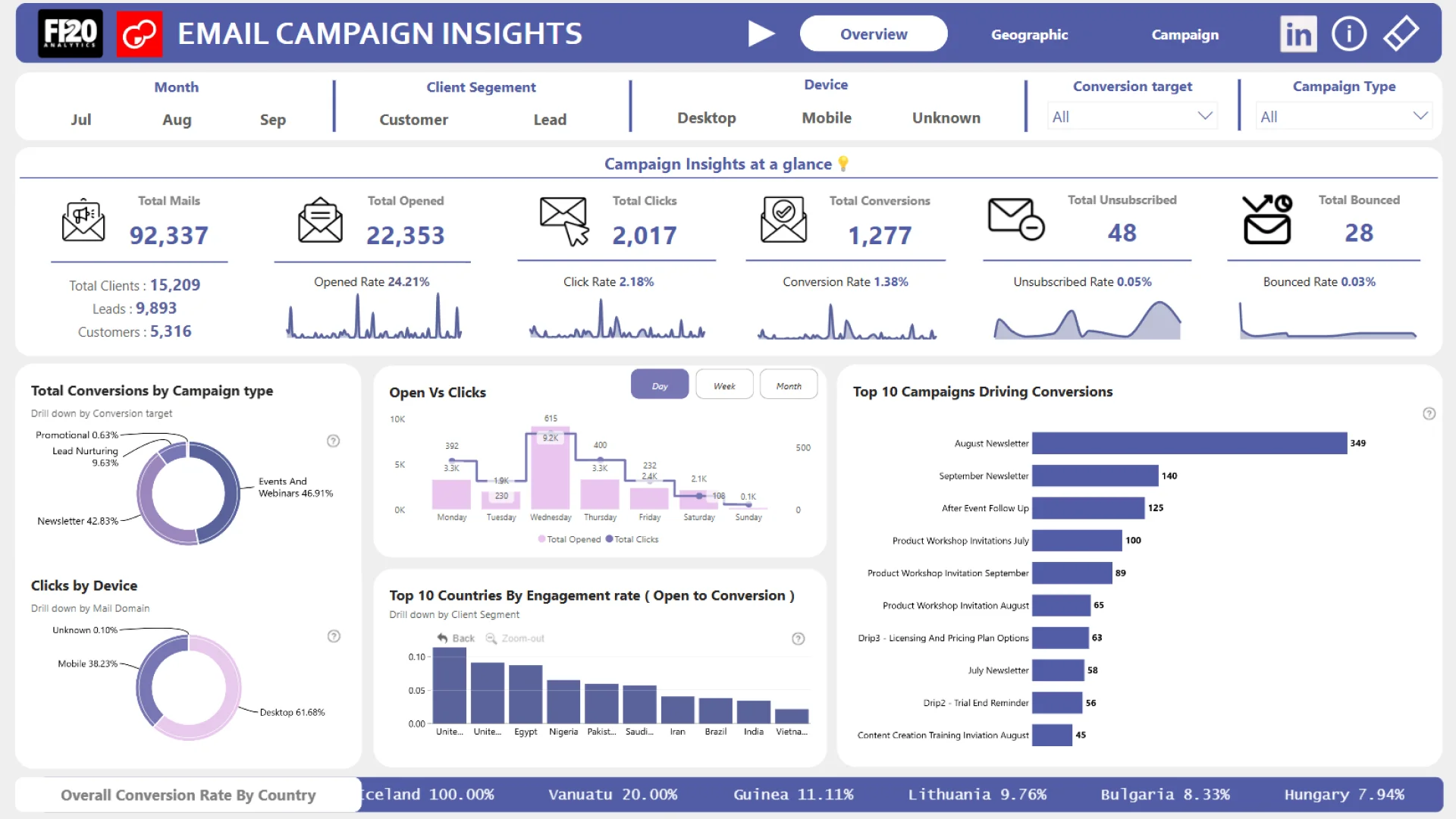
This email campaign report combines an executive overview with time, campaign, audience, and geographic analysis. Its visual set supports several common email-marketing questions: how engagement changes over time, which campaigns or segments contribute most, and where performance differs by location.
The combination of combo, combo bar, timeline, map, and donut visuals creates a clear route from summary to explanation. It is a useful design reference for teams that want both quick KPI monitoring and interactive exploration without relying on a large collection of disconnected slicers.
Explore this dashboard template
ZoomCharts visuals used:
Drill Down Donut PRO, Drill Down Combo PRO, Drill Down Combo Bar PRO, Drill Down Map PRO, and Drill Down Timeline PRO.
10. Power BI Email Audience Performance Dashboard
Best for: Comparing email campaign results across audience segments and geographic markets
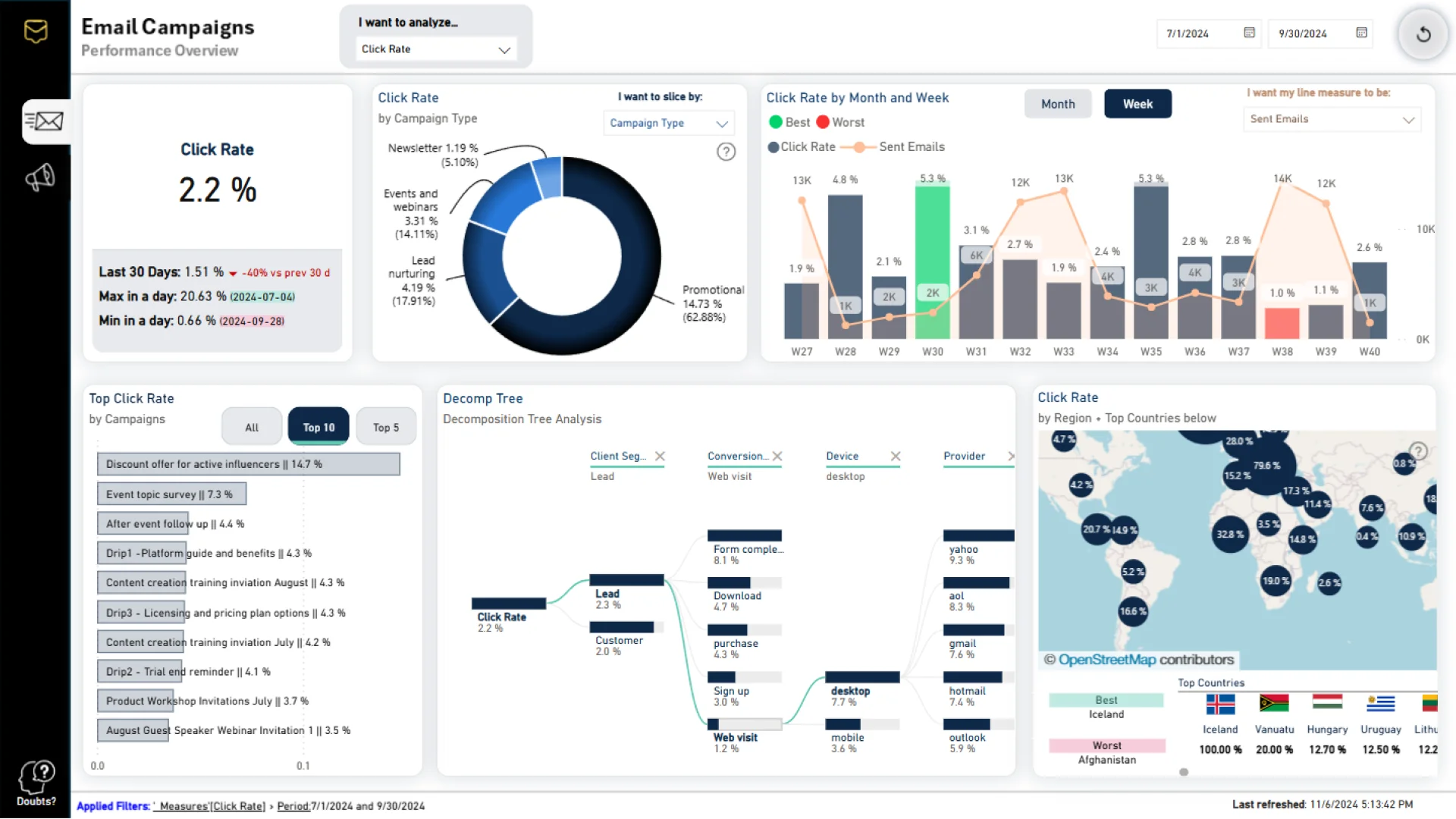
This email marketing dashboard focuses on campaign results, audience comparisons, and geographic engagement patterns. The report provides a compact starting point for understanding how performance varies between customer groups and locations.
Map and donut visuals give the dashboard a consistent analytical language. Users can explore regional performance on the map, then use category composition to compare audiences, campaigns, or other marketing dimensions without overloading the page with competing chart types.
Explore this dashboard template
ZoomCharts visuals used:
Drill Down Map PRO and Drill Down Donut PRO.
11. Power BI Email Marketing Performance Dashboard
Best for: Detailed email campaign, channel, segment, and geographic performance analysis
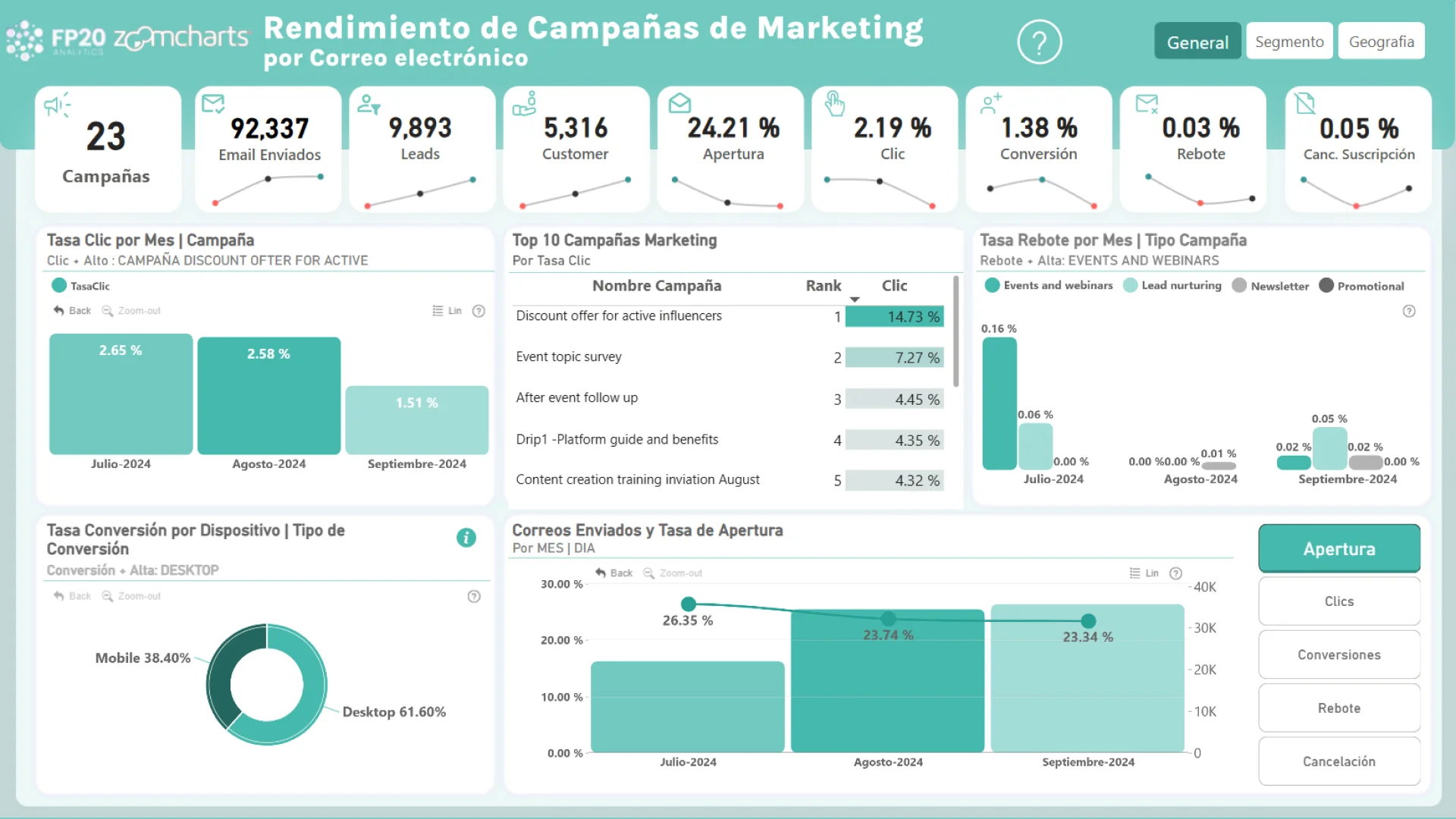
This detailed email marketing report is designed for comparing campaigns, audience engagement, channel results, and performance by segment. Multiple report views give analysts room to investigate patterns without forcing every campaign measure into a single overview.
Combo and combo bar visuals support trend and cross-metric comparisons, pie charts show campaign or audience composition, and the map adds regional context. This makes the template a strong option for teams that need a broader email analysis workflow than a one-page campaign scorecard.
Explore this dashboard template
ZoomCharts visuals used:
Drill Down Combo PRO, Drill Down Combo Bar PRO, Drill Down Pie PRO, and Drill Down Map PRO.
12. Power BI Holiday Sales and Campaign ROI Dashboard
Best for: Connecting seasonal marketing ROI with sales, fulfillment, returns, and profitability
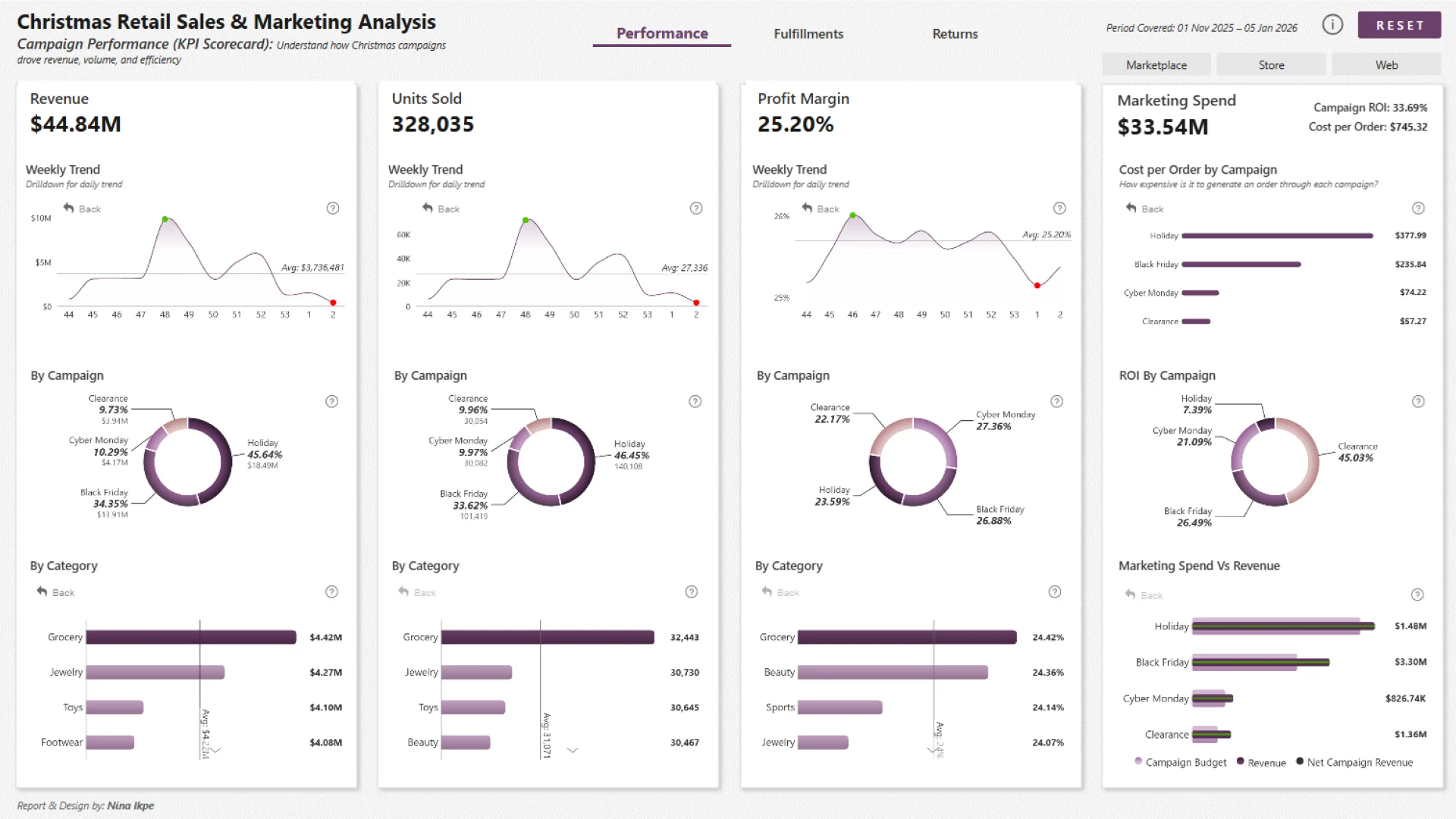
This three-page retail dashboard connects marketing campaigns with the operational results that follow. It covers revenue, quantity sold, profit margin, campaign ROI, promotions, product performance, delivery, warehouse bottlenecks, returns, write-offs, and profitability during the holiday period.
The report is especially useful for teams that need more than campaign engagement metrics. By connecting promotions to fulfillment and post-sale outcomes, it shows whether a campaign generated profitable demand and whether operations successfully delivered that value.
Explore this dashboard template
ZoomCharts visuals used:
Drill Down Combo PRO, Drill Down Combo Bar PRO, and Drill Down Donut PRO.
How to Connect Marketing, SEO, and CRM Data in Power BI
Marketing Data Sources You Can Connect to Power BI
| Data source | Data available | Power BI connection |
|---|---|---|
| Google Analytics 4 | Users, sessions, sources, landing pages, events, engagement, conversions | Get data > Google Analytics. Sign in and select the GA4 property. For event-level data, export GA4 to BigQuery and connect Power BI to BigQuery. |
| Google Search Console | Queries, pages, impressions, clicks, CTR, average position, country, device | Extract data with the Search Console API or a partner connector. Store daily results in BigQuery, a database, Google Sheets, Excel, or CSV, then connect Power BI to that destination. |
| Google Ads | Campaigns, ad groups, keywords, impressions, clicks, spend, CPC, conversions | Use the Google Ads API or a partner connector. Load the output into BigQuery, Fabric, Azure SQL, Snowflake, or another database, then connect Power BI. |
| Meta Ads | Campaigns, ad sets, ads, reach, impressions, clicks, spend, conversions | Use the Meta Marketing API or a partner connector. Store the extracted data in a database or warehouse for scheduled Power BI refresh. |
| LinkedIn Ads | Campaigns, creatives, impressions, clicks, spend, leads, conversions | Use the LinkedIn Marketing API, a partner connector, or scheduled exports. Load the results into a database, warehouse, SharePoint, or OneDrive. |
| Microsoft Advertising | Campaigns, search terms, keywords, impressions, clicks, spend, conversions | Use the Microsoft Advertising API, a partner connector, or scheduled report exports. Connect Power BI to the API output, database, Excel, or CSV. |
| Dynamics 365 / Dataverse | Leads, contacts, accounts, opportunities, stages, pipeline, wins, revenue | Get data > Dataverse. Enter the environment URL, sign in, and select the required CRM tables. |
| Salesforce | Leads, accounts, contacts, campaigns, opportunities, stages, revenue | Get data > Salesforce Objects for CRM tables or Salesforce Reports for existing reports. Sign in and select the required data. |
| HubSpot CRM | Contacts, companies, deals, lifecycle stages, campaigns, email activity | Use the HubSpot API or a partner connector. Load the data into a database or warehouse, then connect Power BI to the stored tables. |
| Email platforms | Sends, deliveries, opens, clicks, bounces, unsubscribes, conversions | For Mailchimp, Klaviyo, Marketo, HubSpot, or Salesforce Marketing Cloud, use a connector, the platform API, or scheduled CSV exports. |
| E-commerce platforms | Orders, customers, products, discounts, refunds, revenue, margin | Connect Shopify, WooCommerce, Stripe, POS, or ERP data through an API, partner connector, relational database, or warehouse. |
| Excel and shared files | Budgets, targets, forecasts, campaign plans, offline leads | Use the Excel, Text/CSV, Google Sheets, SharePoint Folder, or Web connector. Keep recurring files in one shared folder with consistent columns. |
How to Model Marketing Data in Power BI
Do not merge every source into one wide table. Marketing systems record data at different levels: ad platforms may store one row per campaign and day, Search Console may use query, page, country, device, and date, web analytics may contain sessions or events, and the CRM may store one row per lead or opportunity. Combining these rows directly can duplicate spend, traffic, conversions, or revenue.
Use separate fact tables for:
- Advertising fact: impressions, clicks, spend and platform conversions by date, campaign, ad group and creative.
- SEO fact: impressions, clicks, CTR and average position by date, query, landing page, country and device.
- Website fact: users, sessions, events and web conversions by date, source, medium, campaign and landing page.
- Email fact: sends, deliveries, opens, clicks, bounces, unsubscribes and attributed conversions by campaign and date.
- CRM fact: leads, stage changes, opportunities, pipeline value, wins and revenue.
- Commerce fact: orders, products, discounts, refunds, revenue and margin.
Connect these tables through shared dimensions such as Date, Campaign, Channel, Source/Medium, Landing Page, Geography, Product, and Customer Segment. Preserve stable source IDs and standardize UTM source, medium, and campaign values before loading the model. A campaign mapping table can reconcile different names used by advertising platforms, analytics tools, email systems, and the CRM.
Measures and Data Refresh
Once the model is connected, create DAX measures for spend, impressions, clicks, CTR, CPC, leads, conversion rate, cost per lead, customer acquisition cost, pipeline, revenue, ROI, and ROAS. Keep the measure definition consistent across pages so the executive overview, SEO report, campaign report, and CRM funnel do not calculate the same KPI differently.
Define one attribution model and align time zones, currencies, conversion windows, campaign names, and lead stages across sources. After publishing, configure credentials and scheduled refresh in the Power BI Service. Use a data gateway for on-premises or private-network sources and incremental refresh for large date-based tables.
For more pipeline and customer-journey design ideas, explore these Power BI CRM dashboard examples.
Try ZoomCharts Drill Down Visuals Free for 30 Days
Try ZoomCharts visuals in your own Power BI marketing, SEO, and CRM reports. The 30-day trial gives you access to interactive drill-down visuals for building reports that users can explore directly.
Start your free 30-day trial or explore more Power BI report templates.

Want more info like this?
Subscribe to our newsletter and be the first to read our latest articles and expert data visualization tips!