Written by the ZoomCharts team, builders of Drill Down Visuals
Understanding the difference between Power BI drill-through vs drill-down is one of the most common questions report developers ask. The short answer: drill-down keeps users inside the same visual, while drill-through opens a separate detail page. Both are navigation features, but they serve different user intentions and suit different report structures.
This guide explains how each feature works, when to use each one, how to set them up, and how interactive drill-down visuals make Power BI reports significantly easier to explore.
Want users to drill down by clicking directly on charts? Try Drill Down Combo PRO free on Microsoft AppSource.
Table of contents
- What is drill-down in Power BI?
- What is drill-through in Power BI?
- How to set up drill-through in Power BI
- What is the difference between drill-through and drill-down?
- When should you use drill-down?
- When should you use drill-through?
- Can you use drill-down and drill-through together?
- How does ZoomCharts improve Power BI drill-down?
- Frequently asked questions
What is drill-down in Power BI?
Drill-down in Power BI is a navigation feature that lets users move deeper into a data hierarchy inside the same visual, without leaving the report page. The chart updates in place to show the next level of detail, preserving the user's place in the report and any other active filters.
For example, a sales bar chart showing $2.3M in total revenue for the West region can drill down to show the $725K from California, then the $312K from Los Angeles, then individual store performance. The user stays in the same report context while exploring the layers underneath each number.
Drill-down works best when your data has a natural hierarchy: Year to Quarter to Month, Category to Sub-category to Product, or Department to Team to Employee. It supports fast exploration because users can keep asking "what is behind this number?" without changing pages or losing context.
Use drill-down when the user wants to understand what is driving a number and the answer sits inside a hierarchy. The question is always "what is underneath this?"
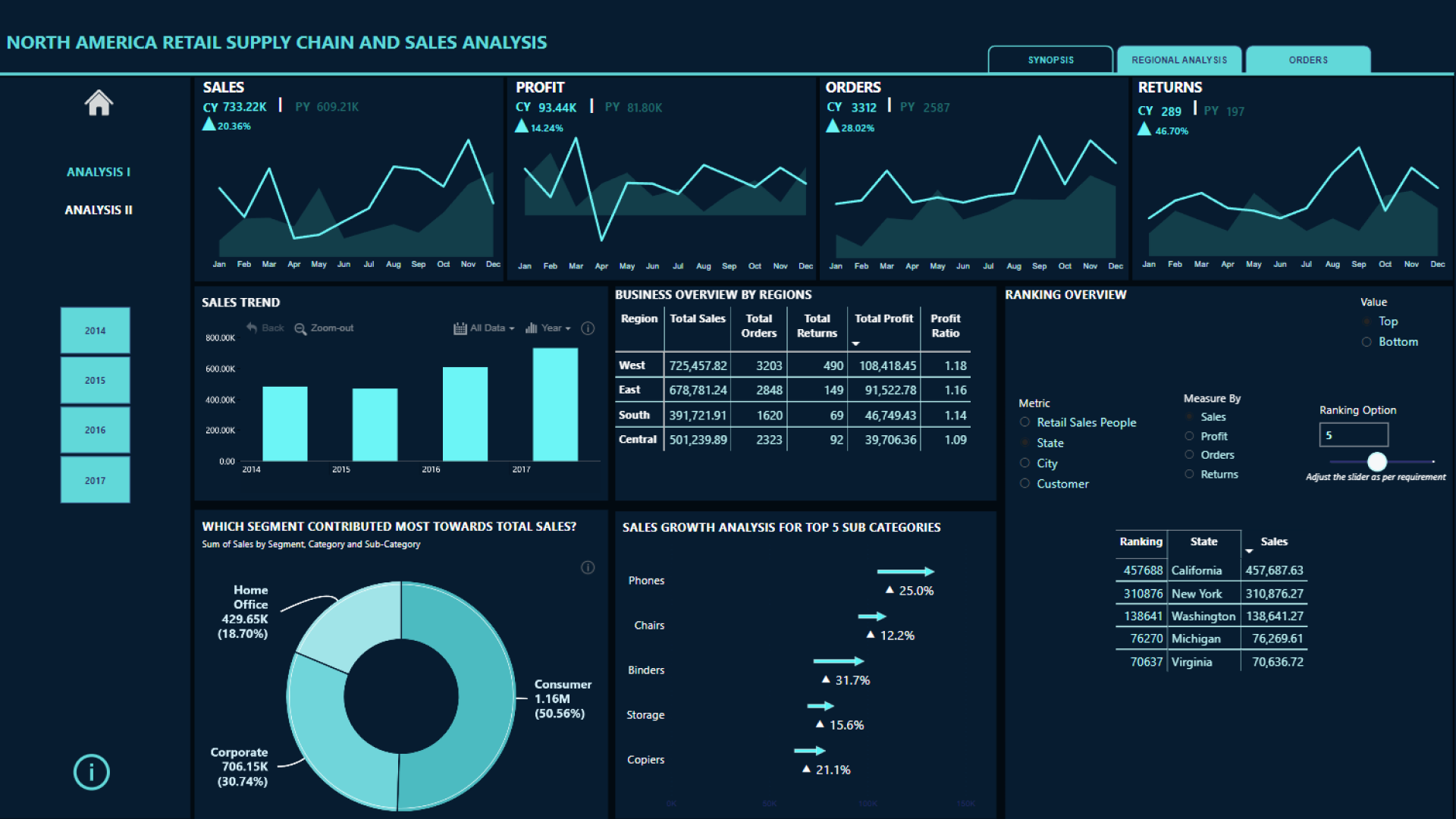
Example: drill-down bar chart built with ZoomCharts visuals. View live demo
What is drill-through in Power BI?
Drill-through in Power BI is a feature that sends the user to a separate report page that is pre-filtered by the data point they selected. Instead of updating the current chart, Power BI navigates to a dedicated detail page that shows a full set of supporting visuals, tables, and KPIs for that specific item.
For example, a user clicks a customer name on a sales dashboard and drills through to a customer detail page. That page shows lifetime revenue, open opportunities, support cases, order history, and account notes. All of that information is too much to fit inside one visual, so drill-through gives it a dedicated space that only appears when the user asks for it.
| User right-clicks | Power BI opens | Purpose |
|---|---|---|
| Customer name | Customer detail page | Revenue, orders, support history |
| Product name | Product performance page | Margin, discounts, returns |
| Salesperson name | Salesperson performance page | Pipeline, targets, activity |
Drill-through is best for structured investigation. It works well when the user already knows what entity they want to inspect and needs a complete page of supporting context rather than a narrower view of the same chart.
How to Set Up Drill-Through in Power BI
Setting up drill-through takes four steps in Power BI Desktop. Once configured, users right-click any data point on the source page to reach the detail page pre-filtered to that item.
Power BI also supports cross-report drill-through, where the detail page lives in a different .pbix file. This is useful for large organizations where different teams own different reports. Enable it in File, Options, Current File, Report Settings, and enable "Allow visuals in this report to use drill-through targets from other reports." Full setup instructions are in the Microsoft Learn drill-through documentation.
What is the Difference Between Drill-Through and Drill-Down in Power BI?
The easiest way to understand the difference between Power BI drill-through vs drill-down is to look at the user journey. Drill-down is a continuation of the current visual. Drill-through is a jump to a dedicated page. Both are navigation tools, but they answer different user questions.
| Feature | Drill-down | Drill-through |
|---|---|---|
| Where it happens | Inside the same visual | On a separate report page |
| Triggered by | Clicking or tapping a data point | Right-clicking a data point |
| Best for | Fast exploration within a hierarchy | Structured investigation of a specific entity |
| Data structure needed | Field hierarchy (Year, Quarter, Month) | A dedicated detail page with drill-through field configured |
| User mindset | "What is underneath this number?" | "Show me the full detail for this item." |
| Page count impact | None. Stays on same page | Adds one hidden detail page per entity type |
| Example | Category to Sub-category to Product | Product name to full Product detail page |
If the user needs to go deeper into the same data, use drill-down. If they need a completely different set of visuals for a selected item, use drill-through.
When Should You Use Drill-Down?
Use drill-down for fast, self-service exploration
Best for hierarchies, trend analysis, and executive dashboards
Use drill-down when users need to stay in the same analytical flow. This principle is central to the 4U Reports framework, where users move from summary KPIs to detailed insights without losing context. The user's first answer always creates a second question, and drill-down handles that loop without disrupting the report experience.
- Sales analysis: Region to Country to Customer
- Financial reporting: Year to Quarter to Month
- Product reporting: Category to Sub-category to SKU
- Operations: Plant to Line to Machine
If users need to ask "what is underneath this number?" more than once per session, drill-down should be the primary interaction pattern for that visual. The 4U Executive KPI report design approach is built on exactly this principle.
When Should You Use Drill-Through?
Use drill-through for dedicated entity detail pages
Best for operational workflows and record-level investigation
Use drill-through when users need a full page of supporting information for a specific entity. Drill-through pages can include tables, related KPIs, transaction history, commentary, exception lists, and supporting charts that would overwhelm a summary dashboard if always visible.
- Customer pages: account health, sales history, open tickets, renewal dates
- Product pages: returns, inventory levels, margin by channel, discount history
- Employee pages: performance targets, pipeline stage, activity log
- Order pages: transaction lines, fulfilment status, exception flags
Every drill-through page is a hidden page in your report that users may not discover. If users need to access detail regularly, consider whether drill-down gives them enough. Reserve drill-through for genuinely different content that cannot fit in the summary view.
Microsoft's Power BI documentation covers the full setup process including cross-report drill-through: Microsoft Learn: Set up drillthrough in Power BI reports.
Can You Use Drill-Down and Drill-Through Together?
Yes, and in many strong Power BI reports they work together as a two-stage navigation pattern. This approach is used in the 4U Reports methodology, which focuses on structured exploration from overview to investigation. Drill-down helps users discover the problem. Drill-through helps them investigate the selected item in full detail.
- Start high. User opens the dashboard and sees category-level sales performance. Total Furniture: $742K. Total Technology: $836K.
- Drill down. User clicks Furniture. The bar chart drills into sub-categories: Chairs, Tables, Bookcases. Tables is at negative $17.7K.
- Spot the issue. Tables is the only sub-category losing money. The user now knows which product line to investigate.
- Drill through. User right-clicks Tables and drills through to the Tables detail page, which shows every transaction, the discount rates applied per order, and which salesperson placed each order.
This pattern gives users both speed and depth. The dashboard summary stays clean and fast. The detail pages are available on demand. Neither feature creates extra clutter for users who do not need that level of detail.
How Does ZoomCharts Improve Power BI Drill-Down?
The biggest problem with native Power BI drill-down is rarely the data model. It is the interaction. Native drill-down requires users to locate a small arrow icon in the visual header, understand what it does, and click it before clicking the data point. For a report developer who builds the model, this is intuitive. For a business user who opens the report once a week, it is not.
Drill Down Combo PRO makes drill-down the default click behavior. Users click directly on a column, bar, line, or area to move deeper into the hierarchy. No right-click menu. No header icon to find. The same click also triggers cross-chart filtering, so the rest of the report page refocuses simultaneously.
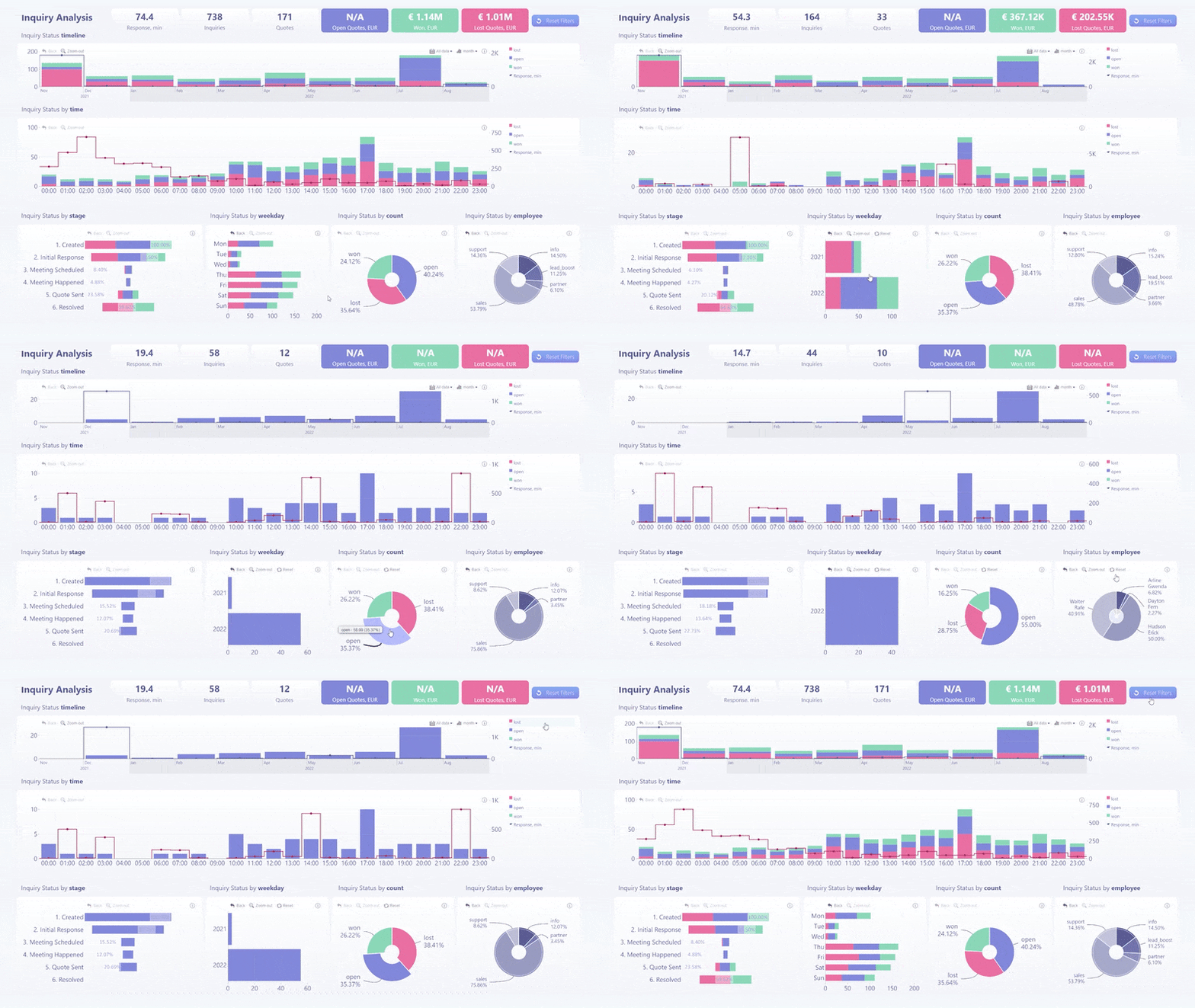
Drill-down with cross-chart filtering in action. View live demo
Install Drill Down Combo PRO free from Microsoft AppSource and let users explore Power BI reports with direct chart clicks.
Key Takeaways
- Drill-down moves deeper inside the same visual by clicking. It is best for hierarchical data and fast exploration. No new page opens.
- Drill-through opens a separate detail page filtered to the selected data point. It is best for structured investigation of a specific entity such as a customer, product, or salesperson.
- Both can be used together: drill-down to discover the issue, drill-through to investigate the selected item in full detail.
- ZoomCharts Drill Down Visuals make drill-down the default click behavior with no header icons or right-click menus required, preserving cross-chart filter context at every level.
Frequently Asked Questions
What is drill-down in Power BI?
Drill-down in Power BI is a navigation feature that lets users move deeper into a data hierarchy inside the same visual without leaving the report page. Clicking a data point updates the visual to show the next level of detail, for example from Year to Quarter to Month, or from Category to Sub-category to Product.
What is drill-through in Power BI?
Drill-through in Power BI is a feature that sends the user to a separate report page that is pre-filtered by the data point they right-clicked. The detail page can contain different visuals, tables, KPI cards, and transaction history that would be too much to show on the summary page.
Is drill-through the same as drill-down in Power BI?
No. Drill-down moves deeper inside the same visual by clicking on it directly. Drill-through opens a separate report page filtered by the selected data point via a right-click menu. They serve different purposes: drill-down for fast exploration within a hierarchy, drill-through for structured investigation of a specific entity.
How do you enable drill-through in Power BI?
Create a new report page, then drag the field you want to filter by (such as Customer Name or Product Category) into the Drill through well in the Visualizations pane. Power BI automatically enables right-click drill-through on any visual in your report that contains that field, and adds a back button to the detail page.
Can you use drill-down and drill-through together?
Yes. A common pattern is to use drill-down for fast exploration of a hierarchy, then use drill-through when the user identifies a specific item they want to investigate in full detail. For example: drill down from Category to Sub-category to find the underperforming product, then drill through to the product detail page to see transaction history and discount data.
Which is better for executive dashboards: drill-down or drill-through?
Drill-down is usually better for executive dashboards because it keeps exploration fast and the user on the same page. Executives typically want to move quickly from a high-level metric to the regional or category breakdown driving it. Drill-through is more useful when they need to investigate a specific record or entity in full, which is less common at the executive level.
Conclusion
Power BI drill-through vs drill-down comes down to one practical difference: drill-down supports fast exploration inside the same visual, while drill-through opens a filtered detail page for structured investigation. The two features complement each other. Use drill-down to discover what is driving a number, use drill-through when you need a full record-level view of the selected item.
For interactive dashboards, drill-down should usually be the first layer of navigation. When designing user-friendly analytical experiences, proven report frameworks such as the 4U Reports approach show that navigation clarity directly improves decision-making speed. Drill-through should support it when users need record-level or entity-level investigation.
Make drill-down easier for every Power BI user
Drill Down Combo PRO makes drill-down the default click behavior, so business users can explore hierarchies without finding header icons or right-click menus. Available free from Microsoft AppSource.
Install free on AppSource Read the 4U Reports introduction