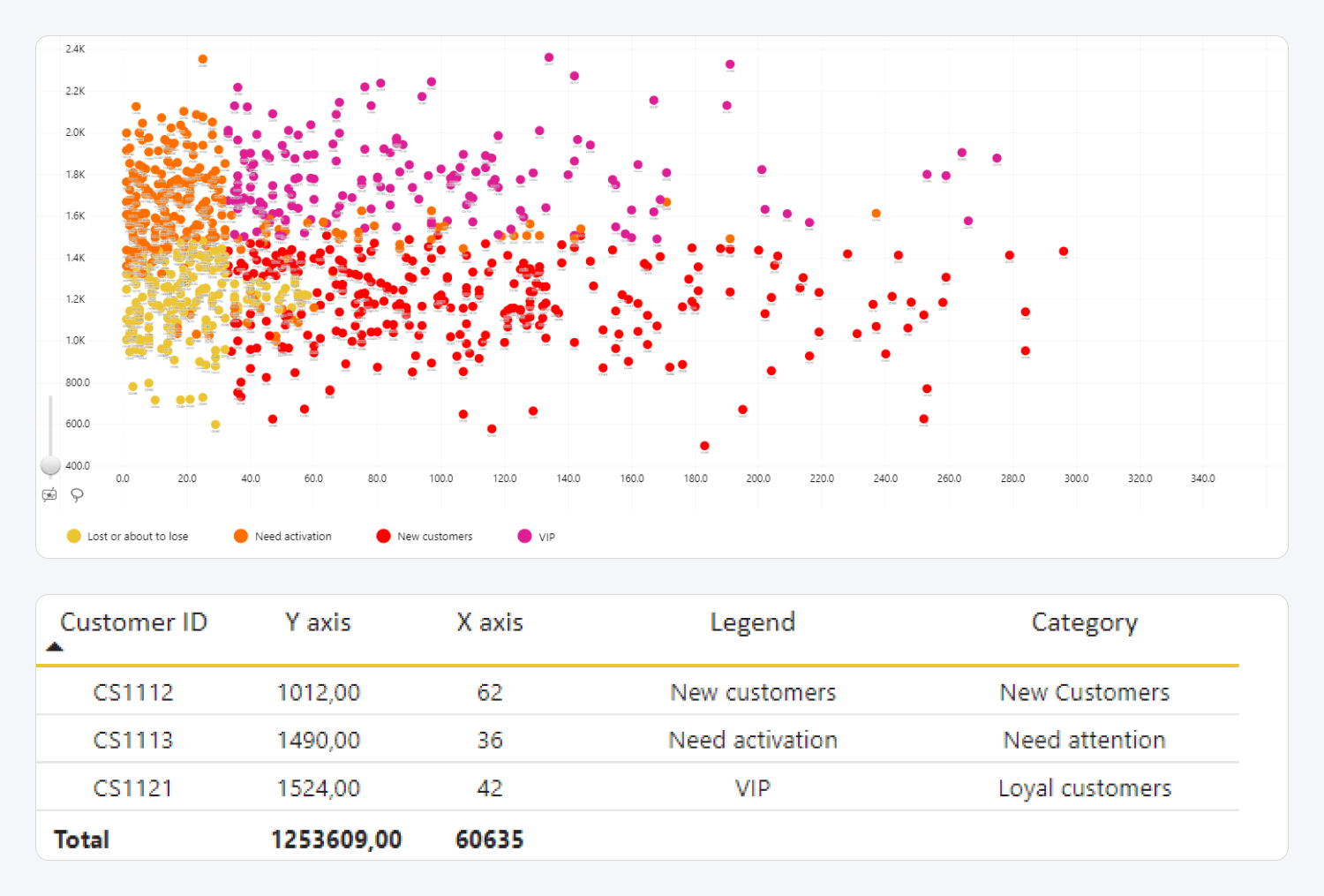
Drill Down Scatter PRO plots numerical values as data points on a Cartesian coordinate plane. You can create drill-down hierarchies, group data points, and customize marker colors, shapes, images, and other appearance settings.
Before you begin
To create a scatter chart, add numerical data to X-Axis and Y-Axis. These values determine the horizontal and vertical position of each data point.
If you add data only to X-Axis and Y-Axis, all values are aggregated and displayed as a single data point.
To display multiple data points, add a field to Categories. Each unique category creates a data point whose position is determined by the values in X-Axis and Y-Axis.
Add multiple fields from the broadest category to the most detailed category to create a drill-down hierarchy. For example, add Product Category before Product Subcategory and Product.
You can also use Legend to create data points when Categories is empty. However, Legend supports only one column and up to 100 unique values. Using Categories is recommended when you want to create a drill-down hierarchy.
All other fields are optional. Use them to provide custom labels, control marker appearance, group data points, or add tooltip information. For more information, see the Data Fields page.
Inital Setup
Drill Down Scatter PRO includes a guided setup experience that helps you start with a common chart configuration.
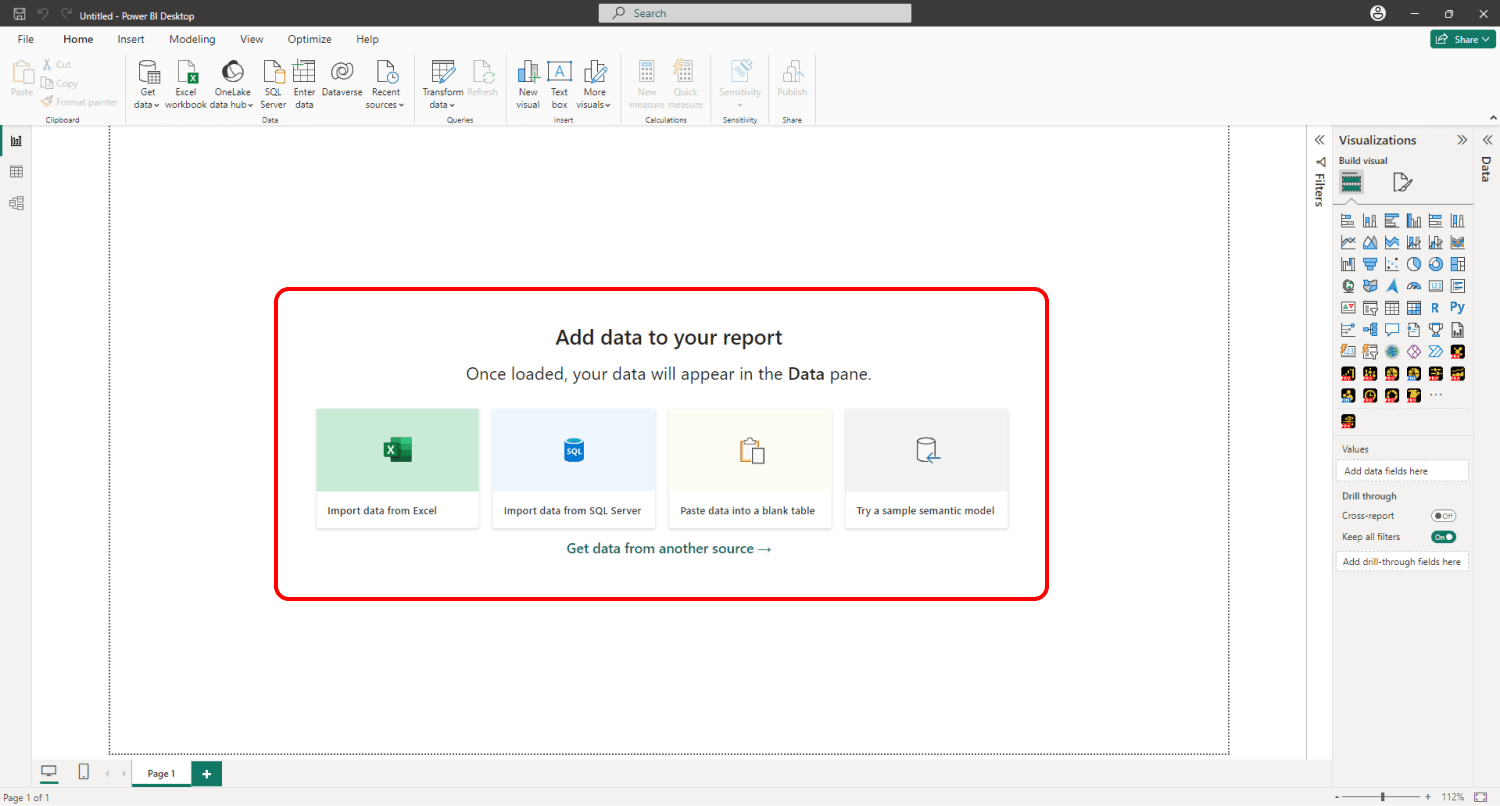
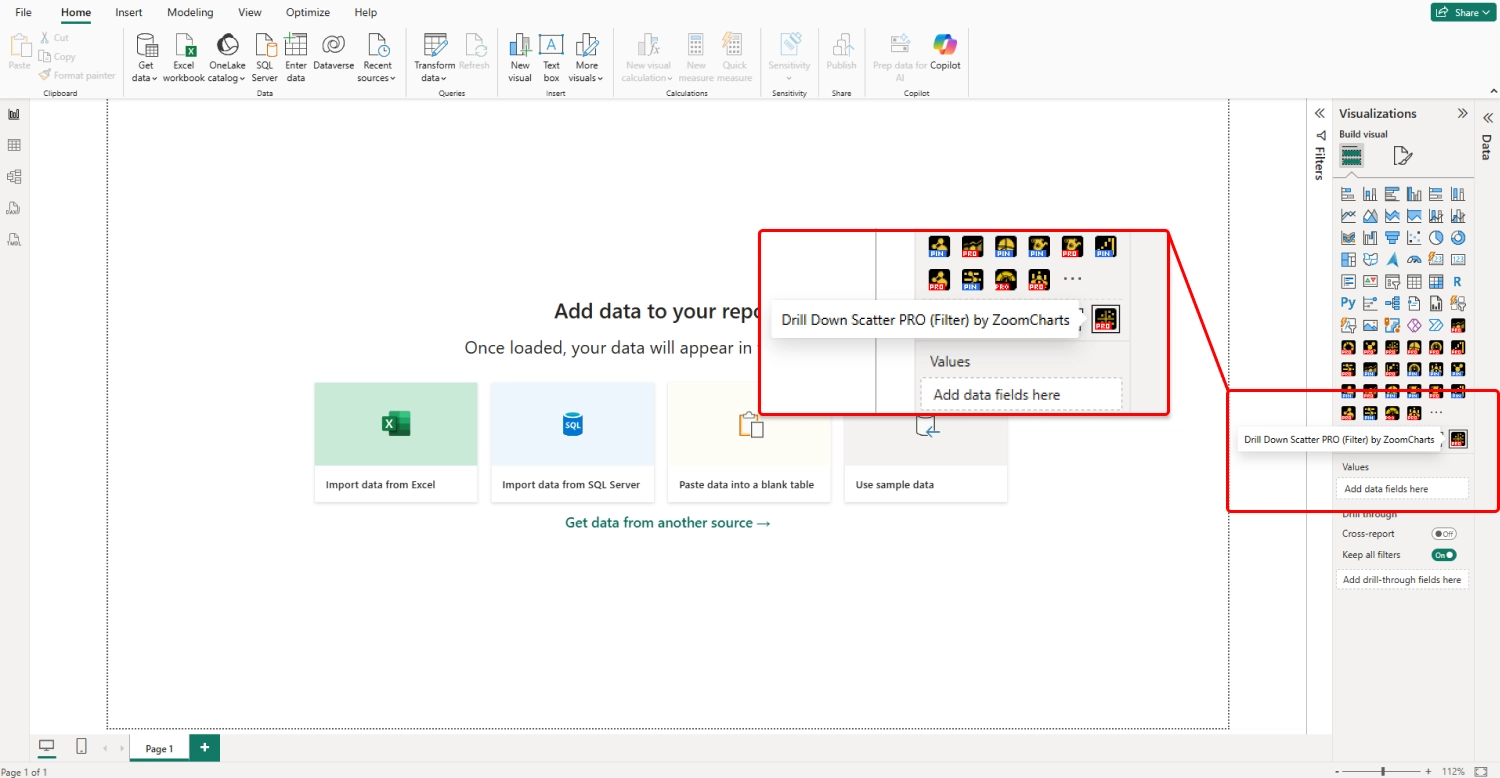
To add Drill Down Scatter PRO to your Power BI report, select the visual in the Visualization's pane.
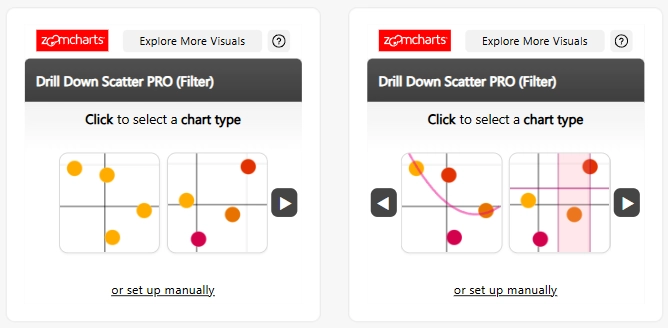
You will be presented with several chart configurations. Select the configuration you want to create.
Required Fields Guidance
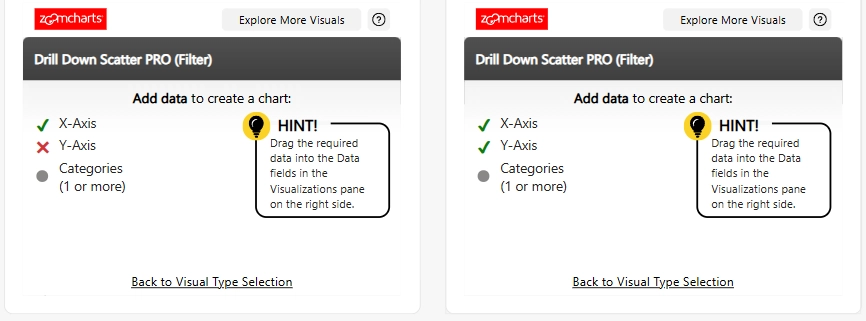
After you select a configuration, the visual displays the data fields required for that configuration.
Field Validation and Visual Generation
As you add data, the visual indicates which required fields have been provided and whether the assigned data is valid. Once all required fields contain valid data, the chart is generated. You can then customize it further in the Format visual pane.
Manual Setup
To configure the visual without selecting a predefined configuration, select Manual Setup at the bottom of the initial setup window.
Was this helpful? Thank you for your feedback!
Sorry about that.
How can we improve it?