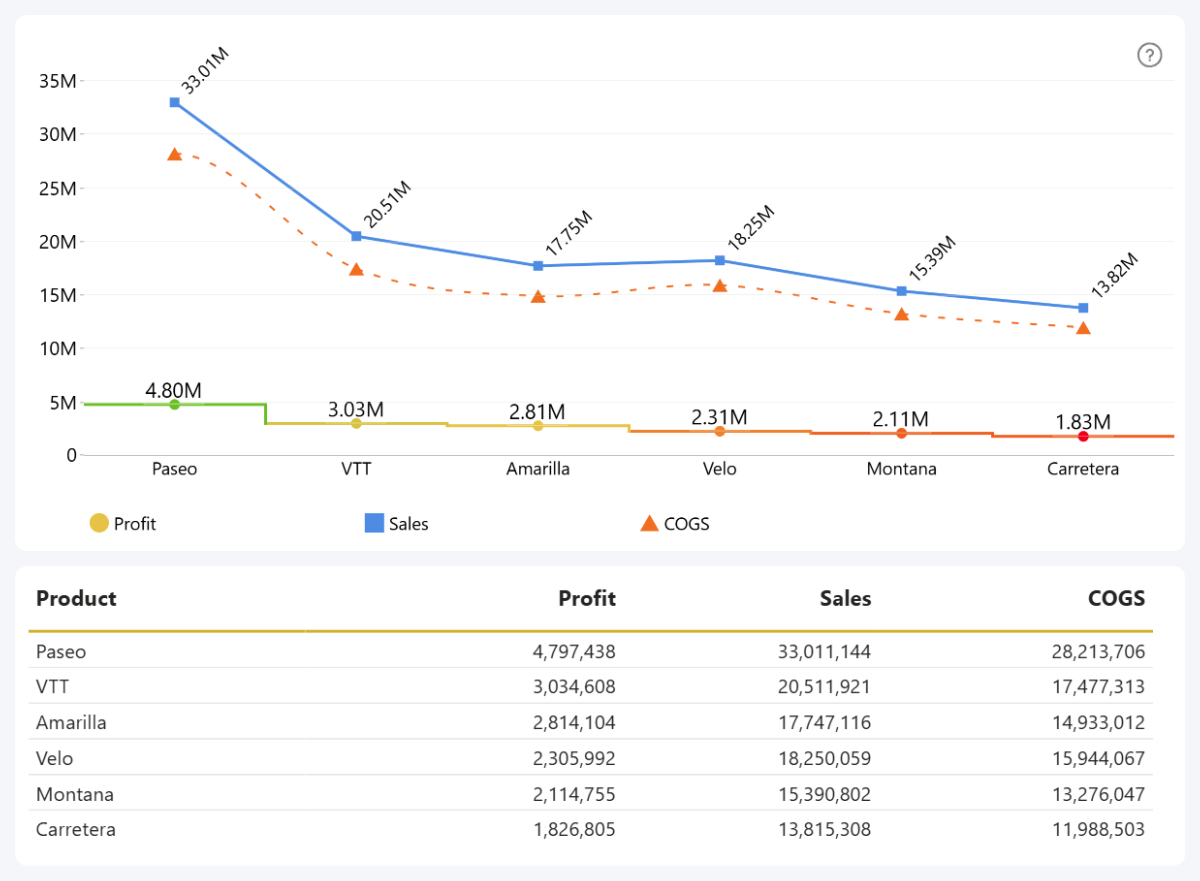
Present your data in a visually appealing way that makes your report stand out. Customize line types, colors, labels, fonts, and other aspects of the chart. Use Series → Apply Settings To to apply settings to the default configuration or adjust an individual series.
- Series line: Adjust the outline type, opacity, width, and color.
- Conditional formatting: Change the color and opacity of a series, value label font, or value label background based on data-driven conditions.
- No Data Policy: Choose whether missing values are joined, treated as zero, or skipped.
- Value labels: Show values directly on a series and customize their font, position, background, display units, and other settings.
- X-axis customization: Customize the label text, orientation, title, unit width, and other axis settings.
- Y-axis customization: Customize the primary axis and enable the Secondary Y-Axis when needed.
- Legend customization: Adjust legend placement, alignment, markers, content, and text formatting.
- Tooltip customization: Select the tooltip type and configure the information displayed.
- Toolbar customization: Choose which navigation controls are available in the toolbar.
- Dark Mode: Improve tooltip and toolbar readability on reports with dark color schemes.
Was this helpful? Thank you for your feedback!
Sorry about that.
How can we improve it?