logo
For Power BI Report Templates
  • Products

    Drill Down Visuals for Power BI

    Discover the most customizable custom visuals for Power BI.

    Pricing & licensing
    • Drill Down Donut Pro
      Drill Down Donut Category Composition
    • Drill Down Pie Pro
      Drill Down Pie Proportional Breakdown
    • Drill Down Combo Pro
      Drill Down Combo Multi-Metric Trends
    • Drill Down Combo Bar Pro
      Drill Down Combo Bar Cross-Metric Trends
    • Drill Down Line Pro
      Drill Down Line Trend Analysis
    • Drill Down Bubble Pro
      Drill Down Bubble Value Relationships
    • Drill Down Scatter Pro
      Drill Down Scatter Correlation Analysis
    • Drill Down Network Pro
      Drill Down Network Entity Connections
    • Drill Down Graph Pro
      Drill Down Graph Relationship Mapping
    • Drill Down Map Pro
      Drill Down Map Geographic Insights
    • Drill Down Waterfall Pro
      Drill Down Waterfall Change Breakdown
    • Drill Down Timeline Pro
      Drill Down Timeline Time-Based Metrics
    • Drill Down TimeSeries Pro
      Drill Down TimeSeries Temporal Patterns
    • Drill Down Line Pro
      Drill Down Line Trend Analysis

    Visuals in Planning

    Discover visuals we’re exploring, share your feedback, and help us decide what to build next.

    Browse concepts
  • Report Templates
    • Browse Report Templates
      Browse Report Templates Explore 2700+
      Power BI reports
    • Plans & Pricing Choose the report download plan
      that fits your needs

    Browse by Category

    Project ManagementSalesFinanceHRKPIBankingLogistics
  • Resources

      Learn

    • Video Tutorials Step-by-step Power BI guides
    • Webinars Live and recorded expert sessions
    • Visuals Gallery Explore all custom Power BI visuals
    • Blog Power BI tips, updates, and guides
    • Documentation Setup, features, and API reference

    Support

    • ZoomCharts Assistance Help from our product experts
    • Contact Sales Questions about pricing or licensing
    • Contact Support Technical help and troubleshooting
    • FAQ Quick answers to common questions
  • Services
    • Power BI Report Development
      Power BI Report Development End-to-end custom
      Power BI reports.
    • Custom Visual Development
      Custom Visual Development Custom visuals for
      your business needs.
  • Challenges
  • Pricing
Request a quote Try Free Trial Sign in
Request a quote Book a Demo Try Free Trial Sign in
Get it now
Go back

Contents

Blog Powerbi Tutorials Power BI Design Tips: Make Your Reports More Efficient

Sep 02, 2022

Power BI Design Tips: Make Your Reports More Efficient

What are some of the best design practices and most important tips for designing a great Power BI dashboard? How can you design a report that is both appealing and efficient at conveying business information? Learn more in this article!

Title image
Title image

What are some of the best design practices and most important tips for designing a great Power BI dashboard? How can you design a report that is both appealing and efficient at conveying business information? Learn more in this article!

Contents

Share this article

As much as we boast about the seemingly endless capabilities of Power BI visuals regarding data analysis, that does lead to a question - what are some of the best design practices and most important tips for designing a great Power BI dashboard? How can you design a report that is both appealing and efficient at conveying business information?

Aldis Ērglis, who has been a part of the data visualization industry for over 20 years, offers us some Power BI design tips in his 'Power BI Zoom Factor' presentation where he talks about the user experience considerations you need to keep in mind when developing stunning visuals and reports.

Power BI Design Tip #1: Use Your Screen-Space Efficiently

Data charts are usually compiled into a dashboard. As Ērglis states - the point of a dashboard is to get insight in the shortest amount of time. Dashboards allow for charts to be compiled into a story; they allow for quick data comparison. So, keep in mind that your dashboard design should fit in one screen. That’s right. One screen. Singular. Any amount of extra scrolling is discouraged in most cases. 

Once you account for extra screen space and additional scrolling, your Power BI visuals lose report-reading speed. Fitting all the necessary Power BI visuals can require quite some mastery in report-making and may seem like a daunting task, but the effort is worth it to quickly develop the best business strategy, as well as separates the experienced report-makers from the amateurs. 

Power BI Design Tip #2: Show Data That Matters

Data context can either make or break your Power BI visuals. Yes, we have the necessary numbers for our chart, but what are we essentially comparing – units sold, employee distribution, sales income, etc.? All of these convey different data contexts and require their own legends. 
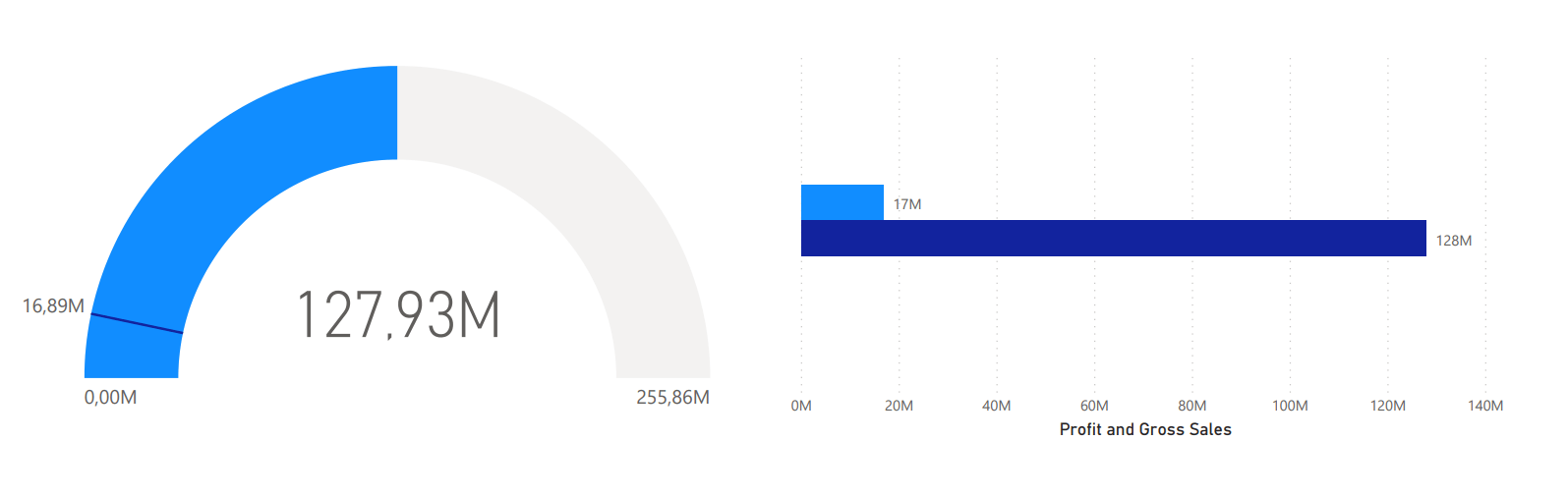
Bad example in data context power bi

The worst you can do is include no context for your numbers at all. Remember to define what they mean and show that information in an obvious place on your chart. 

Consider the following - what's the most important information that you have to visualize? Quantitative or non-quantitative? Do you have to build a report for strategic or analytical purposes?  What story are you trying to tell when designing your report? Are you comparing sales or finance? Or maybe you have to build a report that shows a correlation between different types of data, for example, marketing in relation to sales based on location? 

What really helps is putting yourself in the report consumer’s shoes. Preferably one with less experience with Power BI visuals than yourself, even if the actual potential readers of your report have a decent amount of experience with Power BI. 

Power BI Design Tip #3: Use Shapes & Colors Carefully

Stick to basic shapes and an overall light color scheme when creating your Power BI visual design. Ērglis recommends using dark color schemes for data visualization that fits thematically, such as a chart that shows the various phases of the moon. However, Power BI visuals tend to be mostly used to render business information, such as data regarding sales or human resources. A dark color scheme would just seem too dramatic. 

Pie charts are great for proportional comparison but lose their strength when multiple values must be compared. Bars are great for comparative values. Tables are the worst overall, but great for absolute values. Each type of graph or chart has its strengths and weaknesses, and it’s up to the developer to assess their usage accordingly. 

Power BI Design Tip #4: Bring Focus to the Important Parts

When building Power BI visuals, we can identify certain pixels that bring in information, and pixels that don’t bring in information. Ērglis recommends leaving non-data-related pixels bare or at minimum opacity. The pixels that stand out should only be data-related or help with reading the data.
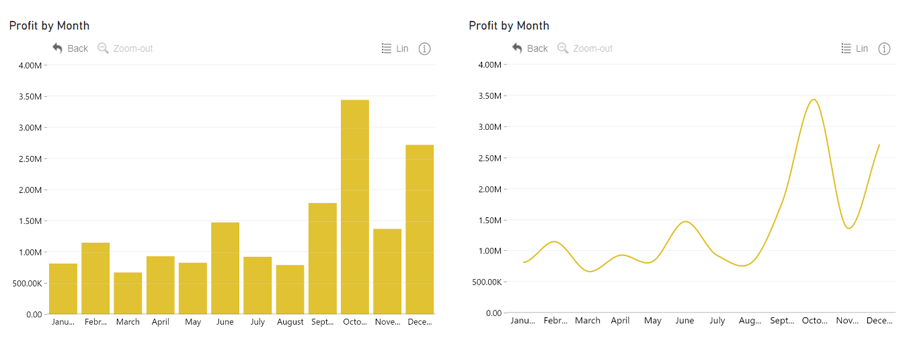
choose right visuals power bi

As we can see, when charts display fewer visual cues, the data becomes more readable, it becomes easier to compare values and proportions displayed on a 2D base, as well as finding certain numbers. The ease of readability also adds an immediate aesthetic value to most Power BI visuals.
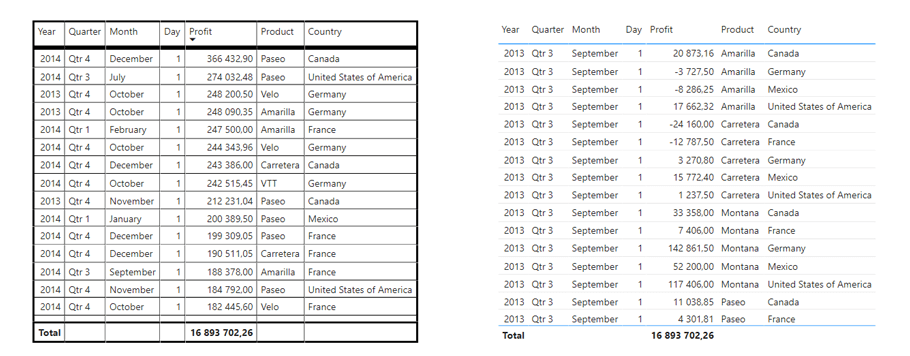
pick best visuals for power bi
 

Another Power BI design tip is taking the density of the compiled data into consideration. The human brain tends to be more accurate in memorizing small multiples of bar charts rather than data that's laid out as a treemap. However, maybe your main task at hand is to represent the entire ecosystem of data.

The interactive nature of Power BI visuals offers a solution – we can represent both an entire treemap of data and drill down to retrieve more accurate data to still contain user-friendliness and readability. 
This is why it’s important to explore all Power BI visuals as well as try out interactive charting libraries. These can prove to be your saving grace when looking for an answer for simultaneously showing the whole network of data and the ability to easily oversee more specific datasets.

Final Thoughts

When we add the interactivity that Power BI visuals offer, we open a whole new world to displaying and reading data. We can resolve many of the pitfalls posed by even the most advanced static charts. Color-coding specific data is useful but can become overly saturated and confusing once we exceed a specific number of data points. With interactive Power BI visuals, we can sort through at the density we wish. We can drill down or up at will, thus transforming the story of the data with just a click. In that sense, a report really is worth a thousand words. 
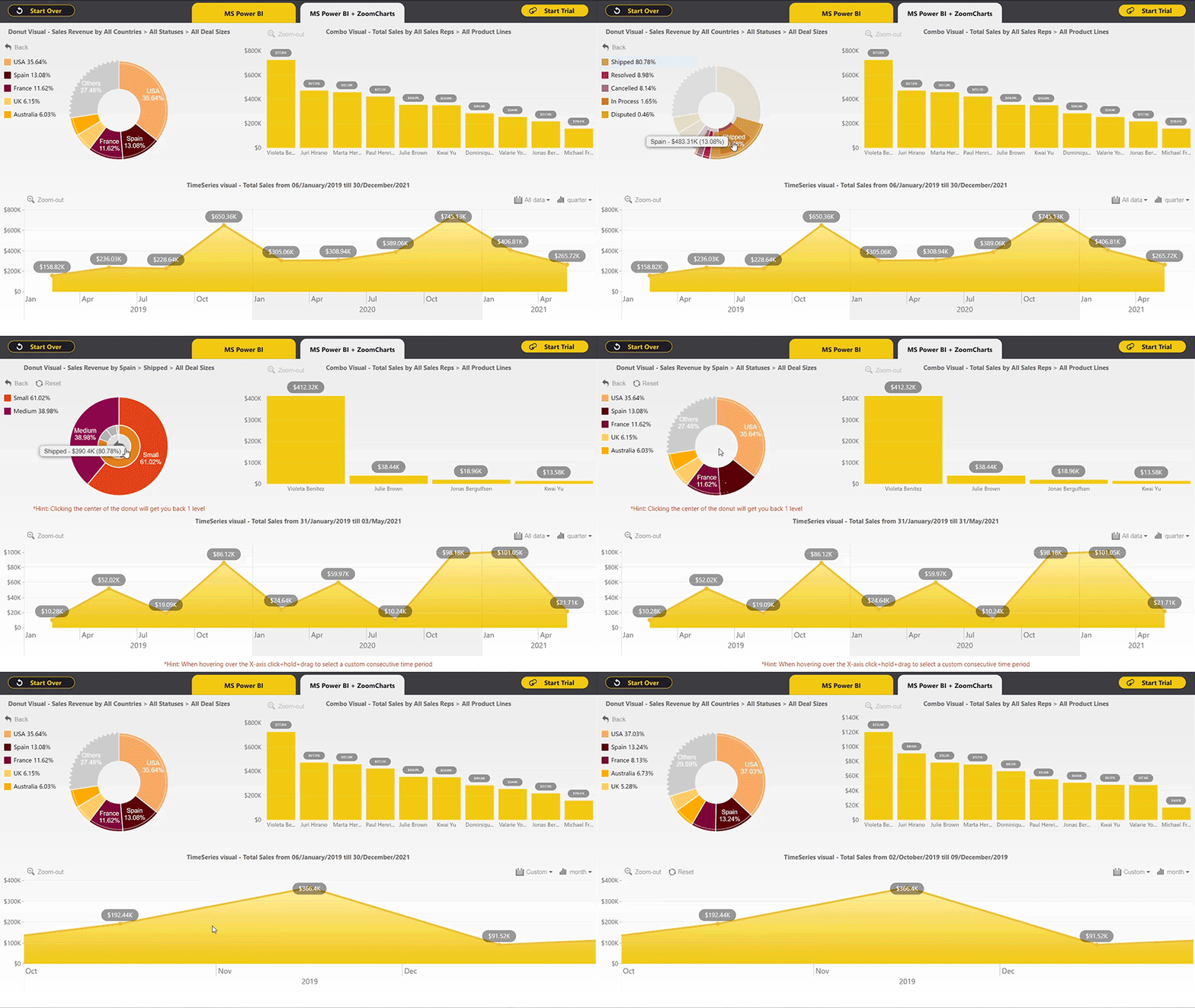
So, now that you know exactly how to pick the perfect visuals, you'll need the right resources that will really complement all that you've learned. Unfortunately, regular Power BI visuals can feel just a bit too limiting.
Custom visuals such as ZoomCharts Drill Down Visuals PRO were developed by data engineers looking to expand the capabilities of Power BI reports. Check out Drill Down Visuals to see what true customization for your visuals can really do. 

Head to the Microsoft AppSource and try out the visuals 30 days for free!

For more information check out: 
Storytelling with Data by Cole Nussbaumer Knaflic. 
39 studies about human perception in 30 minutes by Kennedy Elliott. 

Watch the full presentation by Aldis Ērglis here

envelope icon

Want more info like this?

Subscribe to our newsletter and be the first to read our latest articles and expert data visualization tips!


Find out more

Jan 30, 2023

Blog Thumbnail
Use cases

The Secret to Financial Dashboards in Power BI

If you are part of running a business, a good understanding of financial reporting is absolutely crucial. In order to gauge out your company’s financial performance and potential opportunities for growth, an effective and smooth financial reporting process will be a key part of your decision-making process. 

Dec 12, 2022

Blog Thumbnail
Data visualization

Top 5 Best Power BI Dashboards

When you look at the best Power BI dashboards, you’ll notice that they have a lot in common. They’re fast and easy to read, and responsive to mouse or touch inputs alike. On top of that, they’re visually pleasing and eye-catching.

Nov 30, 2022

Blog Thumbnail
ZoomCharts guides

How to Make Power BI Network Charts Step-By-Step

Here’s the thing about Power BI network charts – they aren’t as difficult to make as they might look. You just need the right tools and creating interactive and fully featured network graph visualizations will become a breeze. In this blog post, we share some tips and tricks for Power BI network charts and go through the most popular use cases for this kind of visual.  

Nov 07, 2022

Blog Thumbnail
ZoomCharts guides

Using Power BI Conditional Formatting in ZoomCharts Drill Down Visuals

When you’re creating reports in Power BI, conditional formatting is one of the most powerful tools for data storytelling. Color is one of the main factors in visual salience, and you can use it to make your reports give a lot of information to the viewer with just a quick glance.

Oct 18, 2022

Blog Thumbnail
ZoomCharts guides

Create a Power BI Org Chart & More with Drill Down Graph PRO

Drill Down Graph PRO is one of our most advanced data visualization tools, and in this article, we will explore the many ways you can use it in your Power BI reports, including org charts, AML graphs and more. Furthermore, we will go through some tips & tricks on how to create graphs in Power BI with this powerful visual.

Jun 12, 2022

Blog Thumbnail
ZoomCharts guides

Power BI Waterfall Charts: A Detailed Guide

Do you know how to make a waterfall chart? Here are 7 tips you should know when building user friendly Power BI waterfall charts. Customize it to tell a data story that helps you make data driven decisions. Bar and column charts work great for visualizing a beginning and ending value. However, these charts fail to display the full data story by leaving out all the unique factors that contribute to a final net value. In this article, we will look at the basics of waterfall charts and what practices you can implement to build the best waterfall charts in Power BI.
  • «
  • 1
  • ...
  • 10
  • 11
  • 12
  • 13
  • 14
  • 15
  • 16
  • »

Contents

Share this article

Want more info like this?

Subscribe to our newsletter and be the first to read our latest articles and expert data visualization tips!


Thank you!

Check your inbox to verify your email address.

logo
[email protected]
+44 204 577 3993
logo

Products

Drill Down Bubble PRO Drill Down Line PRO Drill Down Network PRO Drill Down Waterfall PRO Drill Down Graph PRO Drill Down Combo PRO Drill Down Combo Bar PRO Drill Down Donut PRO Drill Down Pie PRO Drill Down TimeSeries PRO Drill Down Timeline PRO Drill Down Map PRO Drill Down Scatter PRO All Visuals

Resources

Report Examples Webinars Blog ZoomCharts Academy Visuals Gallery Documentation Subscribe to News

Solutions

Custom Visual Development Power BI Report Development

Company

Pricing About Us Partners Leave feedback Join PowerGroup EU Funding

Help

ZoomCharts Assistance Contact Sales Contact Support FAQ AI Information

Drill Down Line PRO Drill Down Bubble PRO Drill Down Network PRO Drill Down Waterfall PRO Drill Down Graph PRO Drill Down Combo PRO Drill Down Combo Bar PRO Drill Down Donut PRO Drill Down Pie PRO Drill Down TimeSeries PRO Drill Down Timeline PRO Drill Down Map PRO Drill Down Scatter PRO All Visuals

Report Examples Webinars Blog ZoomCharts Academy Visuals Gallery Documentation Subscribe to News

Custom Visual Development Power BI Report Development

Pricing About Us Partners Leave feedback Join PowerGroup EU Funding

ZoomCharts Assistance Contact Sales Contact Support FAQ AI Information
+44 204 577 3993
[email protected]

Ready to get in touch?

Contact our experts with any question about Power BI and ZoomCharts for Free!

Contact us

© 2026, Data Visualization Software Lab

U.S. Patents No. 11,645,343; 11,921,804; 12,346,389

Cookies
Privacy Policy
Global
Legal
Patent
warning

Error message

success

Success info: Done!

ZoomCharts AI Assistant

We noticed you're using an old OS version.

For the best experience, we recommend upgrading to ensure that all website features display correctly.

Cookie settings

We use necessary cookies for site functionality, as well as statistic, marketing, and preference cookies to enhance your experience. For more information and to manage your preferences, please visit our Cookie policy