Populate the Marker Size field with a column or measure that contains numerical values to determine the marker size for each data point.
Use the Min Visible Size and Max Visible Size settings in the Data Points section to define the smallest and largest allowed marker sizes. Drill Down Bubble PRO uses the values in the Marker Size field to calculate marker sizes proportionally within this range.
The lowest value in the column or measure is scaled to the Min Visible Size value, and the highest value is scaled to the Max Visible Size value. All other data points are sized proportionally between these two values.
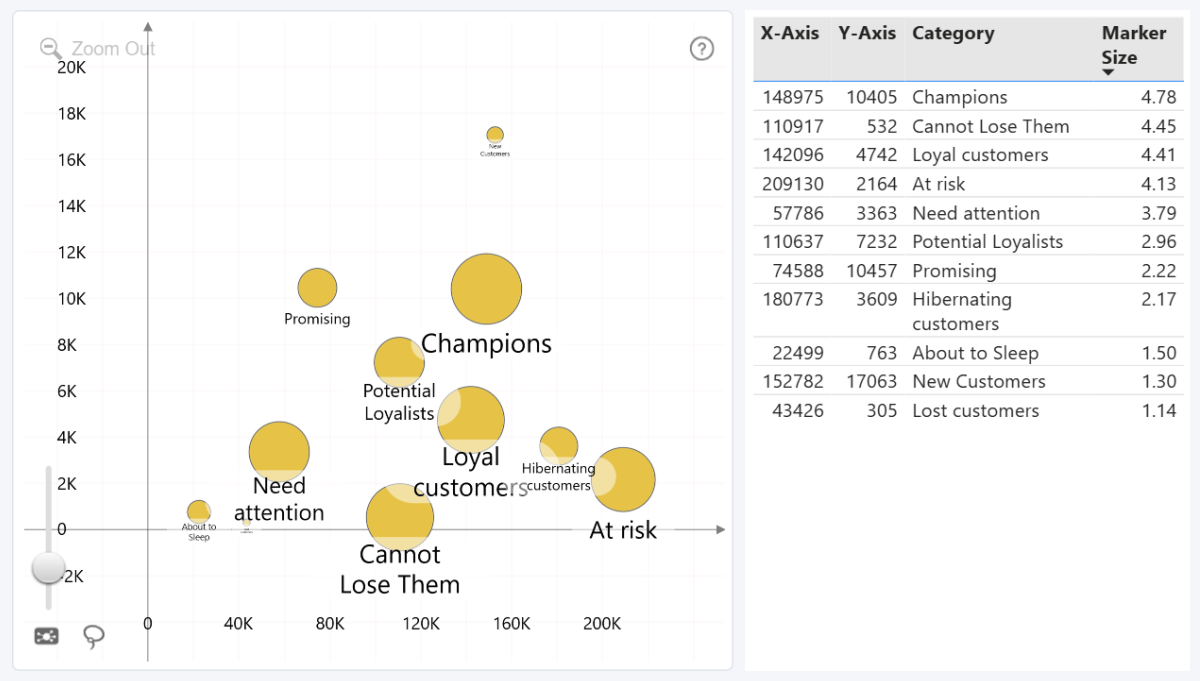
You can use Power BI aggregation settings, such as Sum, Average, Min, Max, First, Last, and Count, for columns added to this field. You can also switch between measures using field parameters.
Was this helpful? Thank you for your feedback!
Sorry about that.
How can we improve it?