By default, Drill Down Bubble PRO automatically adjusts the size of data point markers and labels based on the number of visible data points to maintain readability and usability. To override this behavior, configure the Min Visible Size and Max Visible Size settings.
Enter a value between 0 and 100 to set the minimum allowed size for data point markers. A value of 0 enables automatic sizing. Increase this value to ensure that data points remain visible at a larger size.
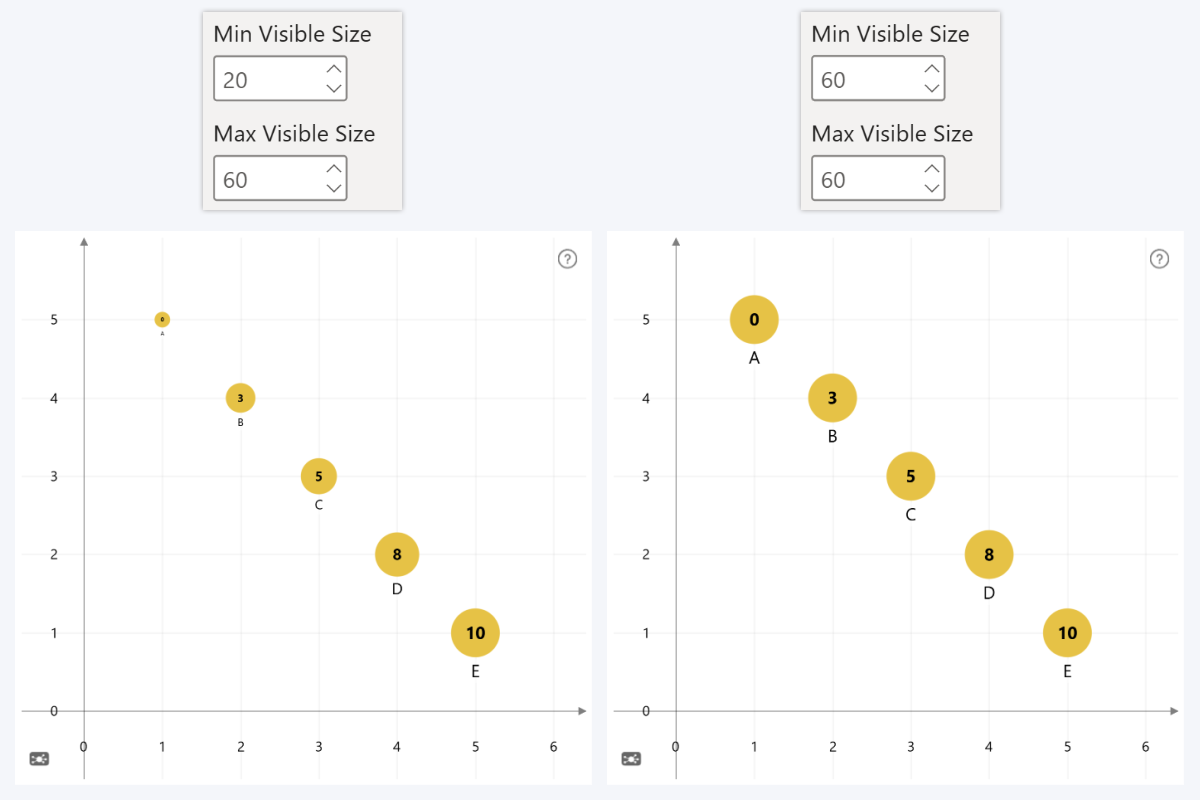
If the Marker Size field is populated, Min Visible Size is applied to the data point with the lowest value in the Marker Size column or measure. Max Visible Size is applied to the data point with the highest value, and all data points between them are sized proportionally within this range.
When Min Visible Size and Max Visible Size use the same value, all data point markers are displayed at the same size, regardless of their Marker Size values.
Was this helpful? Thank you for your feedback!
Sorry about that.
How can we improve it?