911
Email Campaign Performance 2
Email Campaign Performance 2
Report Author: Akshay Waghavakar
911
Share template with others
Report submitted for the FP20 Analytics ZoomCharts Challenge, October 2024. The report was built using the Marketing Email Campaign performance dataset and includes ZoomCharts custom Drill Down PRO visuals for Power BI.
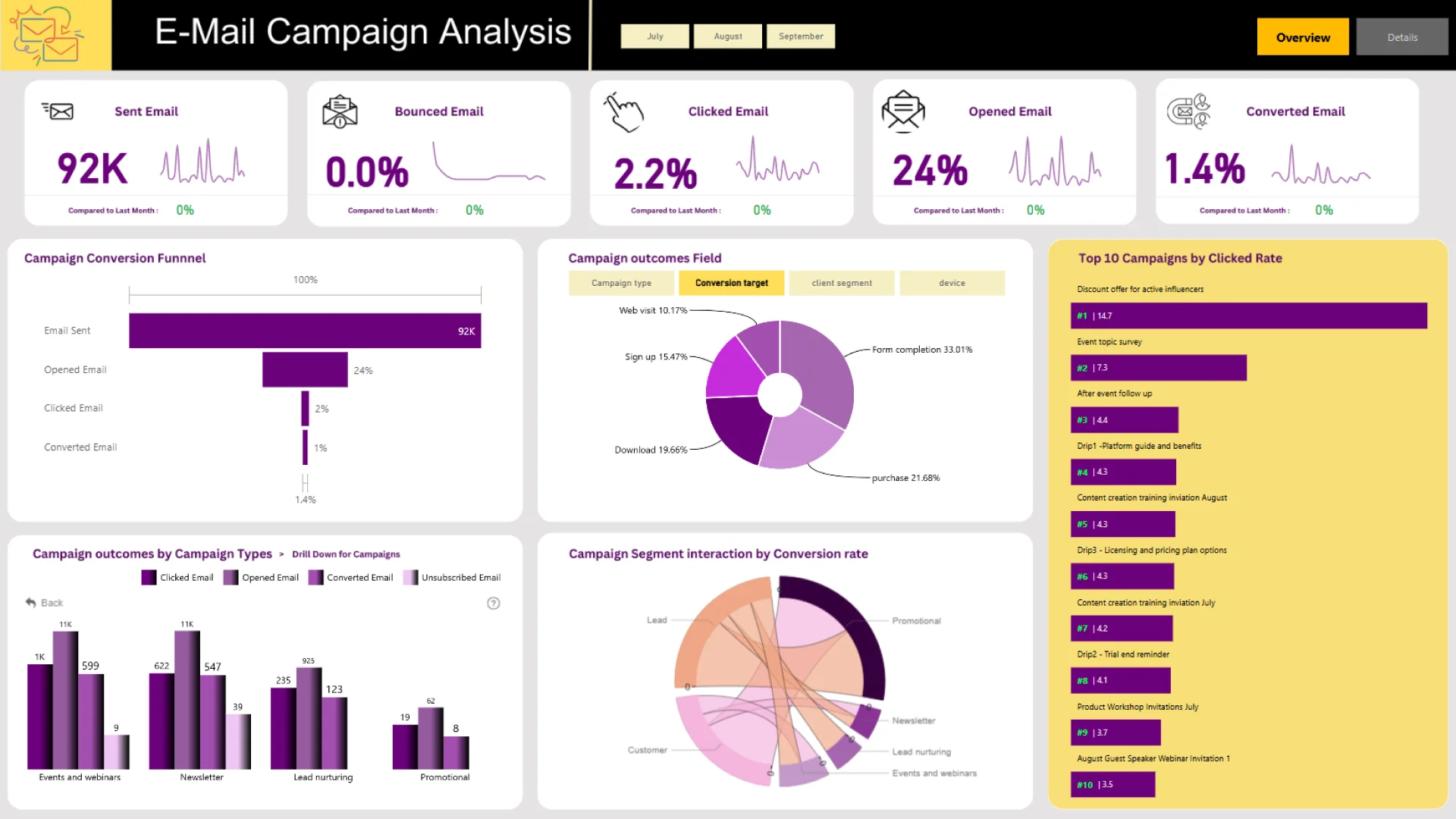
Author's description: This dashboard provides a deep dive into email campaign performance, offering insights into campaign effectiveness and strategic opportunities for optimization. Here's a quick summary of the key insights:
📈 Top Campaigns by Click Rate: Identifies the top 10 campaigns from July to September 2024 based on click rate, highlighting high-engagement campaigns.
📊 Bounce and Unsubscribe Trends: Analyzes campaign types with the highest bounce rates over time and those with the lowest unsubscribe rates, offering critical insights for improving deliverability and engagement.
📉 Click Rate Trend by Conversation Type: Explores click rate trends over time across different conversation types to understand shifts in engagement.
🗺 Geographic Performance: Displays campaign performance by country on a map, providing key metrics for quick geographic insights.
📱 Device Type Analysis: Examines how device types impact campaign performance, focusing on metrics like click and bounce rates by device.
🌍 Country-Specific Insights: Highlights the countries with the highest conversion rates in July and the lowest click rates in September campaigns.
💌 Email Domain Bounce Rates: Identifies client email domains with the highest bounce rates to optimize email deliverability.
📍 Opened Rate by Client Segment: Maps open rates by client segment across different regions.
ZoomCharts visuals used




4U Report Challenges
Participate in data challenges, build and submit reports to get free template downloads.
Join CommunityMobile view allows you to interact with the report. To Download the template please switch to desktop view.
How to use a PBIX template
Preview the interactive report, download the PBIX file, open it in Power BI Desktop, and replace the same data connection with your own dataset.
Preview and download
Explore the report online and download the PBIX template file.
Open in Power BI Desktop
Open the downloaded PBIX file in Power BI Desktop.
Connect your data
Replace the sample data source with your own dataset.
Refresh and adjust
Refresh the model and update fields or visual were needed.
Save and share
Save your report and publish it for your audience.