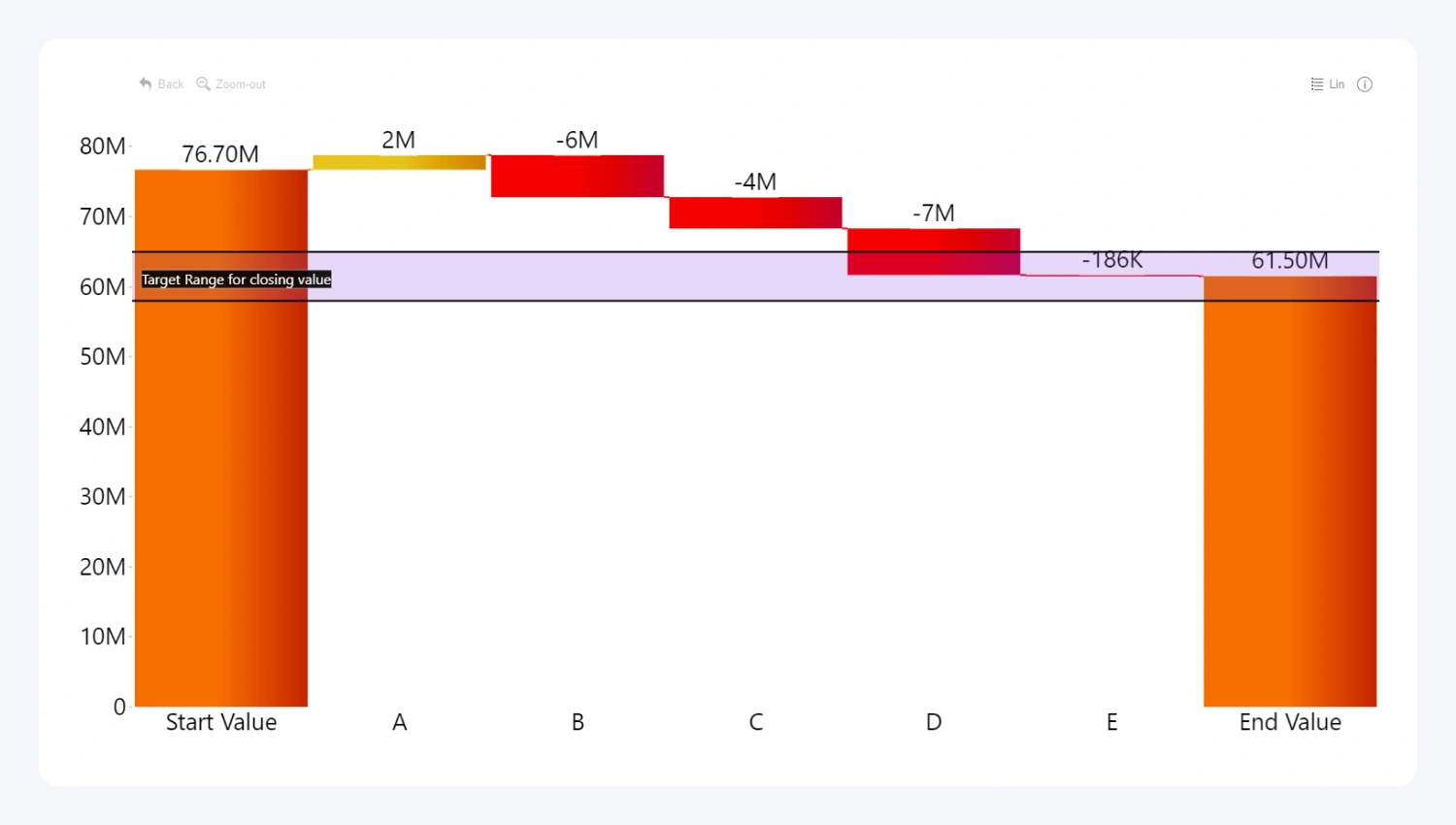
Thresholds can be used to visually compare your data against KPIs, performance targets or other benchmarks. Drill Down Waterfall PRO supports up to four horizontal thresholds on the same chart. You can set each threshold at a constant or calculated value (first, last, minimum, maximum, average, median, percentile) and display it as a line, area, or a change arrow.
Line thresholds require just one value - From Value, which will be used to determine the line placement. Area and change thresholds require From Value and To Value - for area thresholds, they will be used to set the boundaries of the threshold area, but for change thresholds, both values will be compared and the difference will be visualized as an arrow.
Once Thresholds toggle is enabled, further configuration options will become available for Threshold 1:
- Threshold Type
- From-Value Type
- From-Series (available if From-Value Type is not 'Constant' or 'Dynamic Threshold')
- To-Value Type
- To-Series (available if To-Value Type is not 'Constant' or 'Dynamic Threshold')
- Threshold Order
- Fill Color
- Fill Opacity
- Line Color
- Line Opacity
- Line Width
- Show Label (reveals additional settings once enabled)
- Show Threshold (2,3,4)
If your selected Threshold Type is 'Change', the following settings will be revealed that are exclusive to this threshold type:
- Arrow Offset
- Arrow Position
- Arrow Line Type
- Arrow Line Width
- Arrow Size
- Positive Arrow Fill Color
- Positive Arrow Fill Opacity
- Zero Arrow Fill Color
- Zero Arrow Fill Opacity
- Negative Arrow Fill Color
- Negative Arrow Fill Opacity
By default, enabling Thresholds toggle will add one threshold to the chart, and the settings will be applied to Threshold 1. You can add more thresholds by enabling the Show Threshold 2, 3, or 4. Each enabled threshold will reveal the same set of configuration options as listed above, which you can use to configure each threshold's settings independently.
Was this helpful? Thank you for your feedback!
Sorry about that.
How can we improve it?