Use the Style settings to customize the appearance of the navigation arrows.
Use Apply Settings to to choose which arrow state you want to customize:
- Default – customize the normal appearance of the navigation arrows.
- Hover – customize how the navigation arrows appear when the user hovers over them.
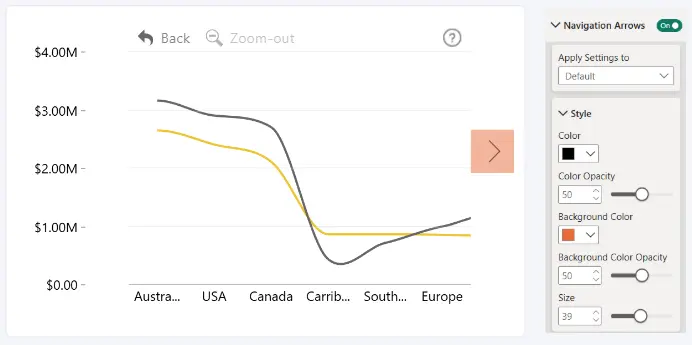
The following settings can be configured independently for each state:
Color
Choose the color of the arrow symbol.
- Default: Black (#000000)
Color Opacity
Set the opacity of the arrow symbol.
- Range: 0–100
- Default: 50
- 0: Fully transparent
- 100: Fully opaque
Background Color
Choose the background color of the navigation arrow button.
- Default: White (#FFFFFF)
Background Color Opacity
Set the opacity of the navigation arrow button background.
- Range: 0–100
- Default: 50
- 0: Fully transparent
- 100: Fully opaque
Size
Set the size of the navigation arrow button.
- Default: 28
Was this helpful? Thank you for your feedback!
Sorry about that.
How can we improve it?