logo
For Power BI
  • Products
    • Custom Visuals for Power BI
    • Report Templates
  • Resources

      Resources

    • Documentation
    • Report Examples
    • Blog
    • Webinars
    • Video Tutorials
    • Visuals Gallery

    Support

    • ZoomCharts Assistance
    • Contact Sales
    • Contact Support
    • FAQ

    Challenges

    Challenges

    Improve your report creation skills by participating in free challenges for report creators.

    Learn more
    Get Developer License
  • Services
    • Power BI Report Development
    • Custom Visual Development
  • Challenges
  • Pricing
Request a quote Get Developer License Sign in
Request a quote Book a Demo Get Developer License Sign in
Get it now
Go back

Contents

ZoomCharts Documentation

Up Down
Edit Category
Delete Save Add Child

Quickstart

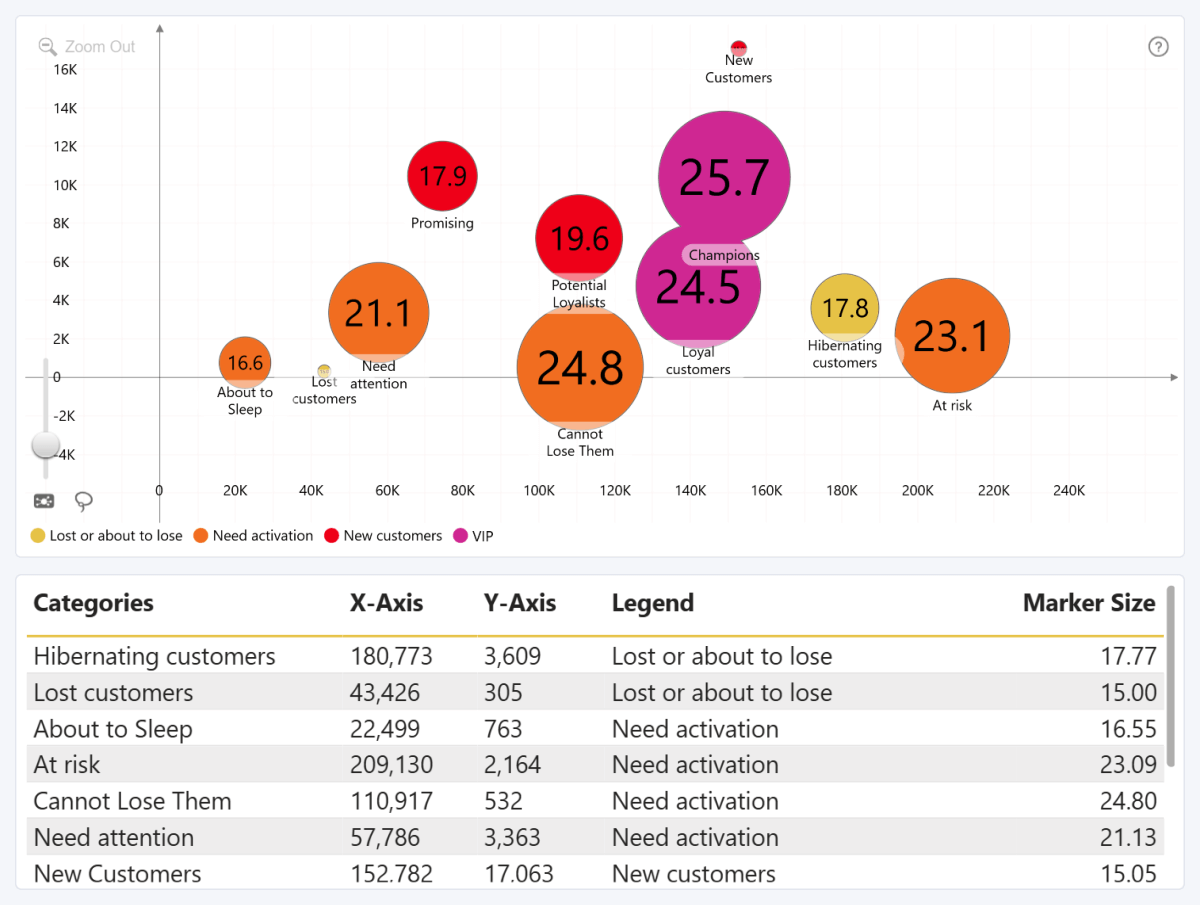
Drill Down Bubble PRO is the most interactive, most configurable, and most user-friendly way to create bubble charts in Power BI. With this visual, you have the capability to create a drill down hierarchy, grouping multiple data points into one and allowing users to expand them with just a click. 

Furthermore, you can customize data point marker colors, shapes, images, and other appearance settings, and configure almost any aspect of your chart with the wide range of formatting options.
Drill Down Bubble PRO is similar to our Scatter PRO visual, and report creators who have experience with Scatter will feel right at home with Bubble. This visual has one crucial difference from Scatter: the Marker Size field, which can change data point marker sizes based on numerical values.  
quickstart-bubble-chart-with-data
Before you begin

This visual requires two mandatory fields to create a bubble chart – X-Axis and Y-Axis, however without any other fields the visual will create just one aggregated data point. You will also need to use the Categories field to successfully plot the values as multiple data points.
Data points can also be plotted with just the Legend field (in cases where no Categories data is present), but this method is not recommended as it has certain limitations.
All other fields are optional, but they will enable you to use specific features of this visual, such as dynamic formatting or additional tooltip text. Read more on the Setting up Fields page of the documentation.

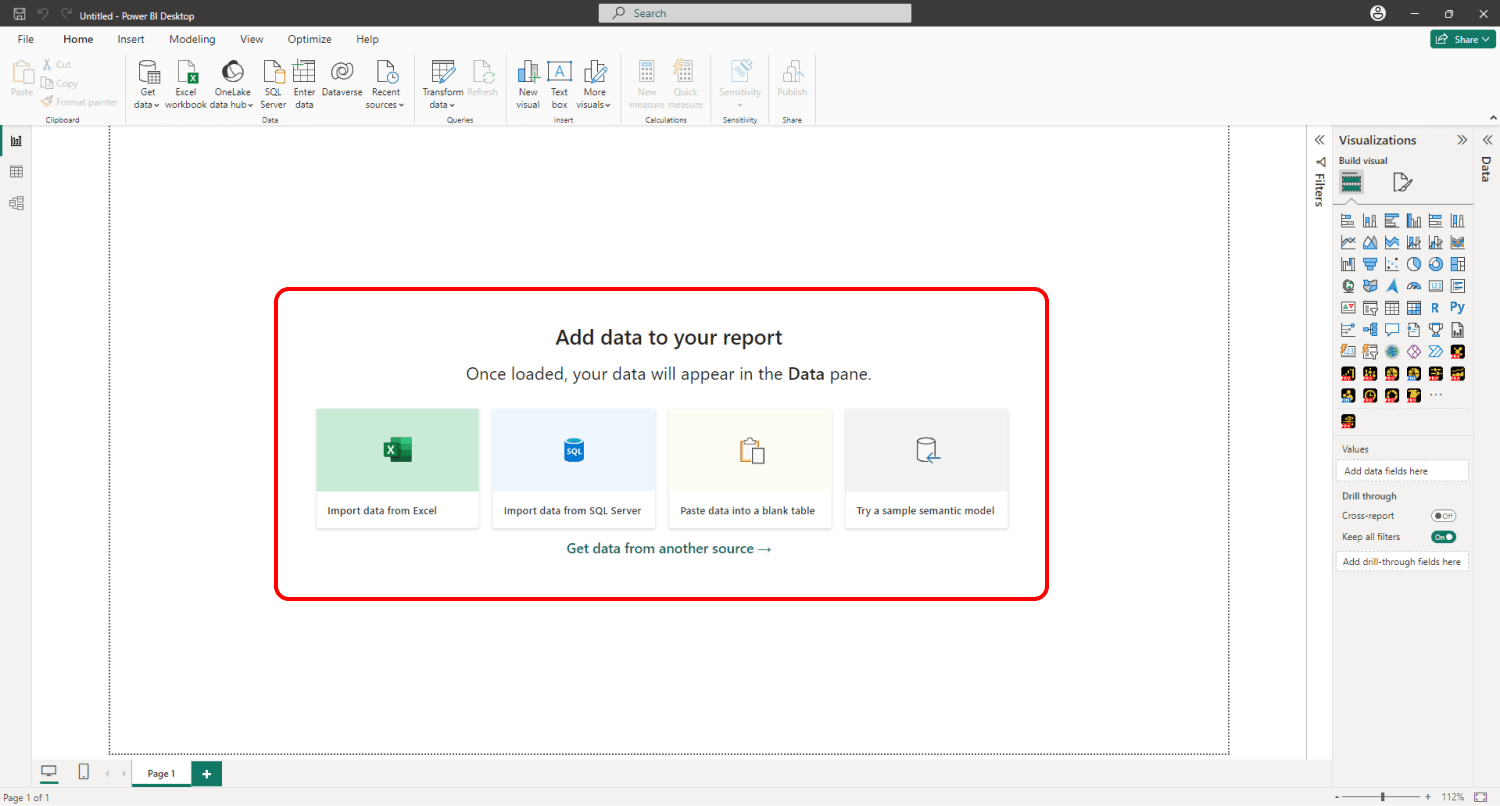
When you create a blank Power BI report, you will be presented with multiple options: you can import your own data, paste it into a blank table, or try a sample data set that’s provided by Power BI. The latter option is recommended if you want to experiment with the features of Drill Down Bubble PRO without using your own data.
Power BI Create report Step1
Adding Drill Down Bubble PRO to Power BI

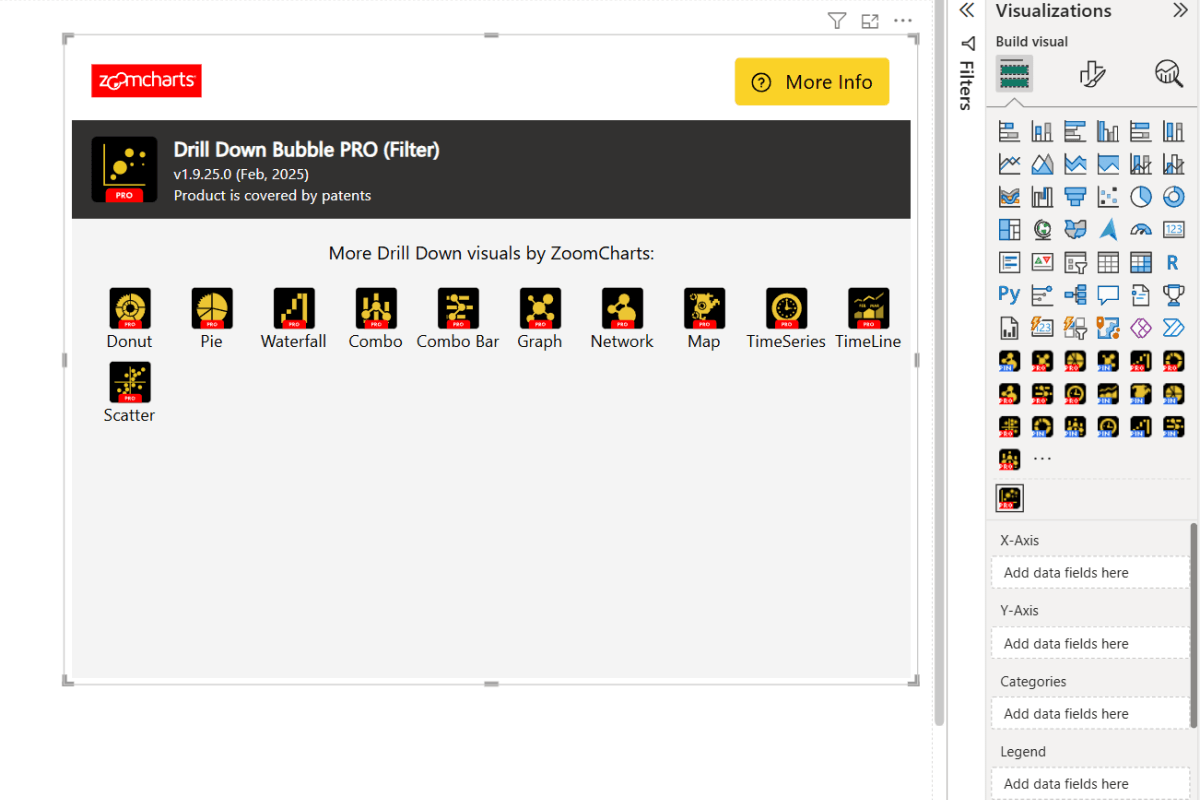
If you have downloaded this visual from Microsoft AppSource within Power BI Desktop, its icon should automatically appear in the Visualizations pane on the right side of your Power BI window.

If you have acquired Drill Down Bubble PRO externally, you may need to add it to Power BI manually. You can do that by clicking the ellipsis button at the end of the visualizations list and pressing Import a visual from a file. Locate the .pbiviz file and the visual will be added to the Visualizations pane.
You need to activate your trial or have a valid license to use the PRO features of this visual. Read more about licensing on this page.
Creating a bubble chart with Drill Down Bubble PRO
Add Drill Down Bubble PRO to your Power BI report by clicking the visual’s icon in the Visualizations pane. Doing so will create a blank visual that contains no data.
bubble-blank-visual

Even though only two fields are mandatory (X-Axis and Y-Axis), it’s also recommended to add data to Categories or Legend fields. If you use just the X-Axis and Y-Axis fields, the visual will aggregate all values in both columns and display them as just one data point.

Creating a scatter chart with Drill Down Scatter PRO (x,y axis only)

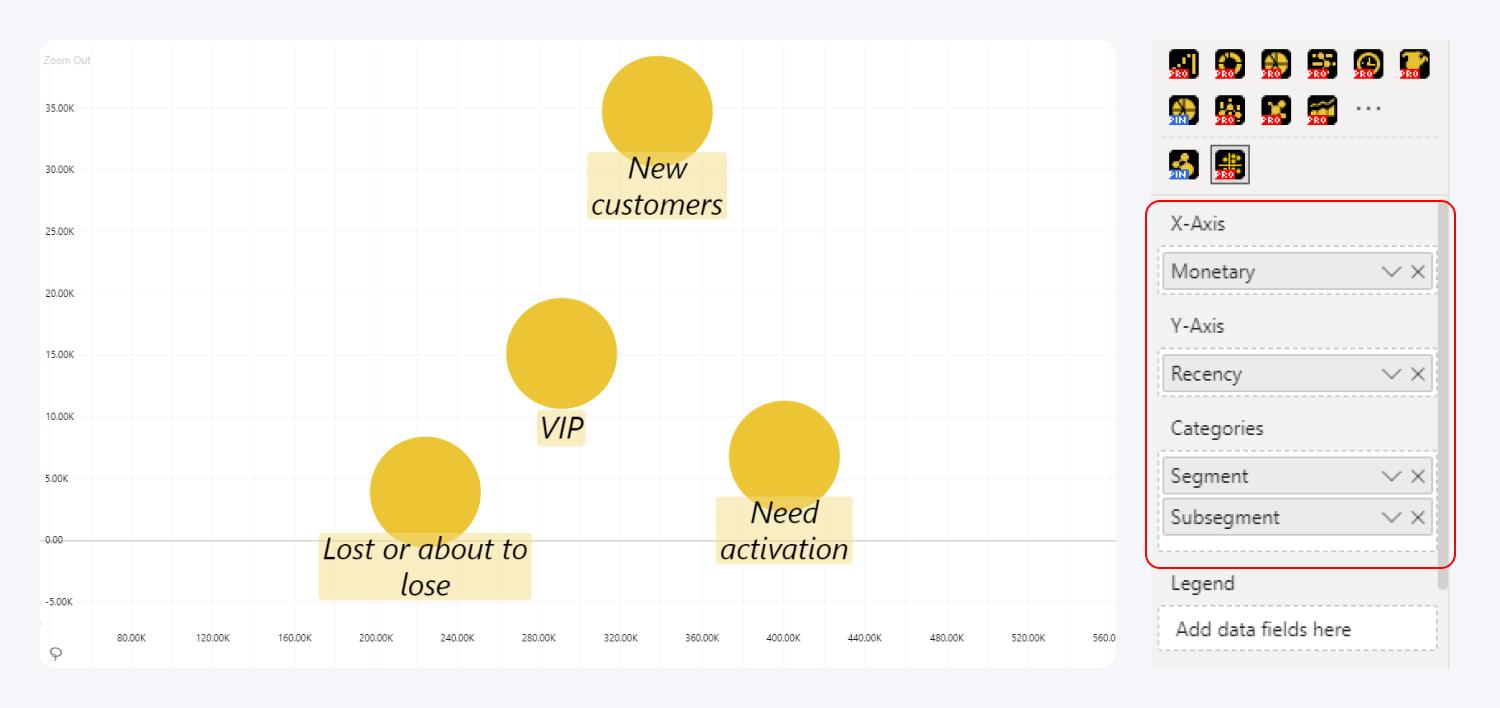
To create a bubble plot with multiple data points, you’ll need to add at least one column to the Categories field. Each unique category name in that column will be plotted as a data point. If you wish to group multiple values into one data point, you can enter the same category name for multiple rows in the data table.


You can add multiple columns to this field to create a drill down hierarchy (based on the column order in the Categories field from top to bottom). Doing so will allow the user to click or tap on a data point and quickly reveal the next level of hierarchy.
scatter-chart

The Legend field can be used to assign data points into groups that are represented as items in the legend block; and apply specific color and shape settings to each legend group. This field can also create data points when no Categories field is present. However, it’s recommended to use Categories for the data structure and Legend for customization purposes to get the most out of this visual.


In addition, you can use Label, Value Label, Marker Size, Marker Color, Marker Shape, Marker Image, Data Point Group, and Tooltips optional fields. Read more about data setup for Drill Down Bubble PRO in the Setting up Fields page of this documentation!


Customizing Your Bubble Chart

After adding the required data, you have now successfully created a bubble chart. You can head to the Format visual tab of the Visualizations pane and explore the wide variety of customization features available in Drill Down Bubble PRO.


You’ll find various settings to alter the appearance and behavior of this visual, including legend and label customization (e.g. position, text font, size, color, and more), X and Y axis configuration, and data point marker appearance (shape, color, size, etc.). In addition, you can enable up to four threshold lines or areas on each axis and enable up to eight shaded areas.


Furthermore, you can activate the Use As Filter toggle to enable cross-chart filtering, which will dynamically filter data in other visuals on the same page as you select data points in your bubble chart, or vice versa – filter your bubble chart as you explore other visuals. 

Was this helpful? Thank you for your feedback!

Sorry about that.

How can we improve it?

logo
[email protected]
+44 204 577 3993
logo

Products

Drill Down Bubble PRO Drill Down Line PRO Drill Down Network PRO Drill Down Waterfall PRO Drill Down Graph PRO Drill Down Combo PRO Drill Down Combo Bar PRO Drill Down Donut PRO Drill Down Pie PRO Drill Down TimeSeries PRO Drill Down Timeline PRO Drill Down Map PRO Drill Down Scatter PRO All Visuals

Resources

Report Examples Webinars Blog ZoomCharts Academy Visuals Gallery Documentation Custom Visual Development Subscribe to News

Solutions

Custom Visual Development

Company

Pricing About Us Partners Leave feedback Join PowerGroup EU Funding

Help

ZoomCharts Assistance Contact Sales Contact Support FAQ

Drill Down Line PRO Drill Down Bubble PRO Drill Down Network PRO Drill Down Waterfall PRO Drill Down Graph PRO Drill Down Combo PRO Drill Down Combo Bar PRO Drill Down Donut PRO Drill Down Pie PRO Drill Down TimeSeries PRO Drill Down Timeline PRO Drill Down Map PRO Drill Down Scatter PRO All Visuals

Report Examples Webinars Blog ZoomCharts Academy Visuals Gallery Documentation Custom Visual Development Subscribe to News

Custom Visual Development

Pricing About Us Partners Leave feedback Join PowerGroup EU Funding

ZoomCharts Assistance Contact Sales Contact Support FAQ
+44 204 577 3993
[email protected]

Ready to get in touch?

Contact our experts with any question about Power BI and ZoomCharts for Free!

Contact us

© 2026, Data Visualization Software Lab

U.S. Patents No. 11,645,343; 11,921,804; 12,346,389

Cookies
Privacy Policy
Global
Legal
Patent
warning

Error message

success

Success info: Done!

ZoomCharts AI Assistant

We noticed you're using an old OS version.

For the best experience, we recommend upgrading to ensure that all website features display correctly.

Cookie settings

We use necessary cookies for site functionality, as well as statistic, marketing, and preference cookies to enhance your experience. For more information and to manage your preferences, please visit our Cookie policy