920
FP20 Analytics Challenge 19
FP20 Analytics Challenge 19
Report Author: Borys Kuznietsov
920
Share template with others
Report submitted for FP20 Analytics ZoomCharts Challenge 19 (September 2024). The report was built with the E-commerce KPI Analysis dataset and includes ZoomCharts custom Drill Down PRO visuals for Power BI.
Author's description:
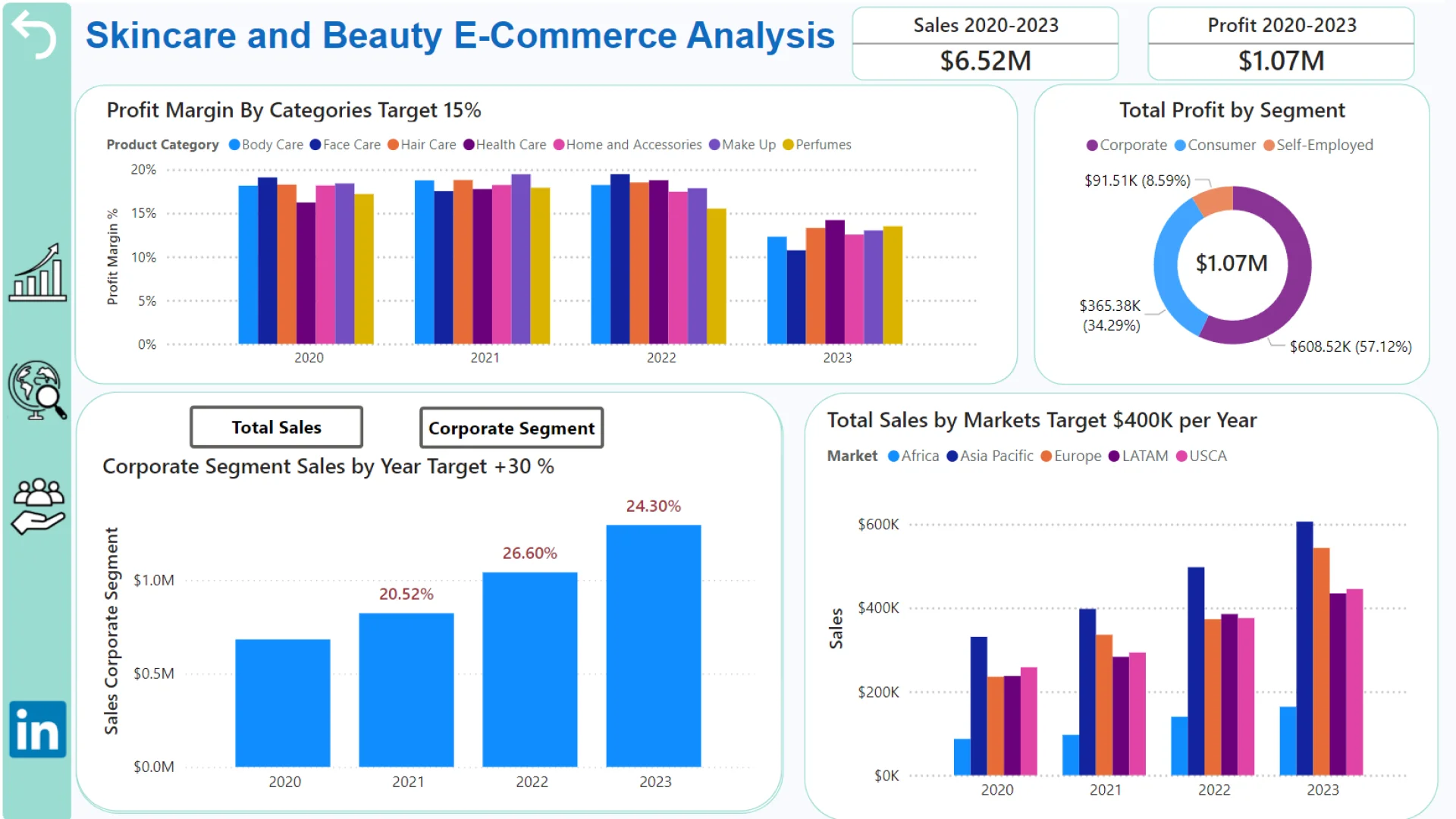
I conducted an analysis of the global skincare and beauty e-commerce sector, with an emphasis on essential performance metrics such as sales, profitability, and growth. Leveraging Power BI, I visualized data trends from 2020 to 2023 to identify valuable insights.
💡Why My Report Is Different!
I made it report close to real, because initial data contained inaccuracies in the distribution of products into categories and subcategories (like golden earrings in Body Care category!). So I have reorganized the products by keywords in the description using new conditional columns (Product Subcategory and Category). That's why my top sales categories and subcategories may differ from your reports. I also added 2 new category:
- Health Care (I added Vitamins to this category)
- Perfumes (Because Fragrances didn't suit to any of 5 existing categories)
👉 Key Insights:
🏷️Top-Performing Segments:
• Product Categories: Home and Accessories emerged as the most sold category, contributing 28% of total sales over the past three years.
• Corporate Segment: The corporate segment is 57% of total sales for the period.
🏷️Market Growth:
• Overall Sales: The e-commerce platform achieved more than targeted of 20% growth in sales yearly, but in corporate segment it wasn't able to reach the 30% goal.
🏷️Profit Distribution:
• Geographical Breakdown: Asia Pacific was the highest-earning region, generating $1.83 million in sales, which accounted for 28% of the total.
• Interactive Map: Explore regional profits and emerging markets using the interactive map by hashtag#ZoomCharts.
🏷️Best-Selling Products:
• Top Seller: The Herbal Essences Bio was the top-selling product, generating $67,6K in sales between 2020-2023.


4U Report Challenges
Participate in data challenges, build and submit reports to get free template downloads.
Join CommunityMobile view allows you to interact with the report. To Download the template please switch to desktop view.
How to use a PBIX template
Preview the interactive report, download the PBIX file, open it in Power BI Desktop, and replace the same data connection with your own dataset.
Preview and download
Explore the report online and download the PBIX template file.
Open in Power BI Desktop
Open the downloaded PBIX file in Power BI Desktop.
Connect your data
Replace the sample data source with your own dataset.
Refresh and adjust
Refresh the model and update fields or visual were needed.
Save and share
Save your report and publish it for your audience.